Tips and Guides22

Stay ahead with Sky Media’s latest SEO, web design, and Google Ads tips. Practical advice for Kiwi businesses to boost their online success.

How to Get High-Quality Videos for Your Website

By Tips and Guides

Professional videos are a business investment, because high-quality website videos communicate the quality of a business’s products and services. Here you’ll find Sky Media’s helpful guidelines for identifying website-worthy videos for your site.

To get high-quality videos for your website, you really have 5 different options. You may use 1, or all of these options to create a high-quality site.

  • Utilise your best existing videos.
  • Take some top-quality new videos.
  • Hire a professional videographer.
  • Ask suppliers for product videos.
  • Use professional stock videos.

Whichever option/s you choose, you’ll want to ensure all your selected videos include the video essentials listed below. If they don’t, they’re simply NOT website-worthy.

How to Take and Select High-Quality Videos for Your Website

If you’re considering DIY videography (or using existing videos) it’s critical to consider clarity, balance, lighting, orientation, background, size, and file type, if you’re to achieve website-worthy videos.

Clarity
The video you’re considering must be 100% crystal clear. If the vidoe is fuzzy, blurry, pixelated, or unclear in any way at all, it’s not website-worthy.

Balance
If the object of focus in the centre, or the image itself is not aligned with the video’s outer frame, it’ll look wonky. In addition, a steady hand is essential when filming. Editing tools can adjust some videos to create balance (we charge extra for this), however it’s best if balance and focal points are considered before videos are taken.

Lighting
If images, products, people, or spaces look dark, or hard to see, you’re not placing your offer in the best light – literally. D.I.Y lighting is best achieved outside on an overcast day.

Orientation
You’ll need to ensure videos are fit for purpose in terms of orientation. Most website videos are landscape, so that’s your best bet, but on rare occasions portrait orientation is suitable.

Background
The background of an image matters. It’s important that product videos or office videos have a clean clear uncluttered background. Attention to detail creates a high-quality look and feel.

Size
All videos need to be a minimum 1920×1080 pixels (1080p, also known as Full HD or FHD) in MP4 file format. When the size isn’t right, videos may look blurry, pixelated, or warped once they’re uploaded to your website. Find out how to check the size of a video on Mac, iPhone, PC and Android below.

File type
All videos need to be submitted as MP4 files. In most cases, your videos will already be MP4’s but it pays to check. If they’re not the right file type, you can often use a file converter online to get the right file type. Find out how to check the file type of a video on Mac, iPhone, PC and Android below.

Quality Control Checklist for Website-Worthy Videos

  • Clarity – Crystal clear.
  • Balance – Centred and steady.
  • Lighting – Well lit.
  • Orientation – Landscape.
  • Background – Clean and clear.
  • Size – 1920×1080
  • File type – MP4’s.

If your selected videos tick all 7 boxes, then congratulations, it’s highly likely they’ve met Sky Media’s website-worthy quality control standards.

How to Check a Video’s Size and File Type

All videos need to be in MP4 format and a minimum of 1280x720px. To check the size, or file type of any video, follow the instructions for MacBook, iPhone, PC and Android below…

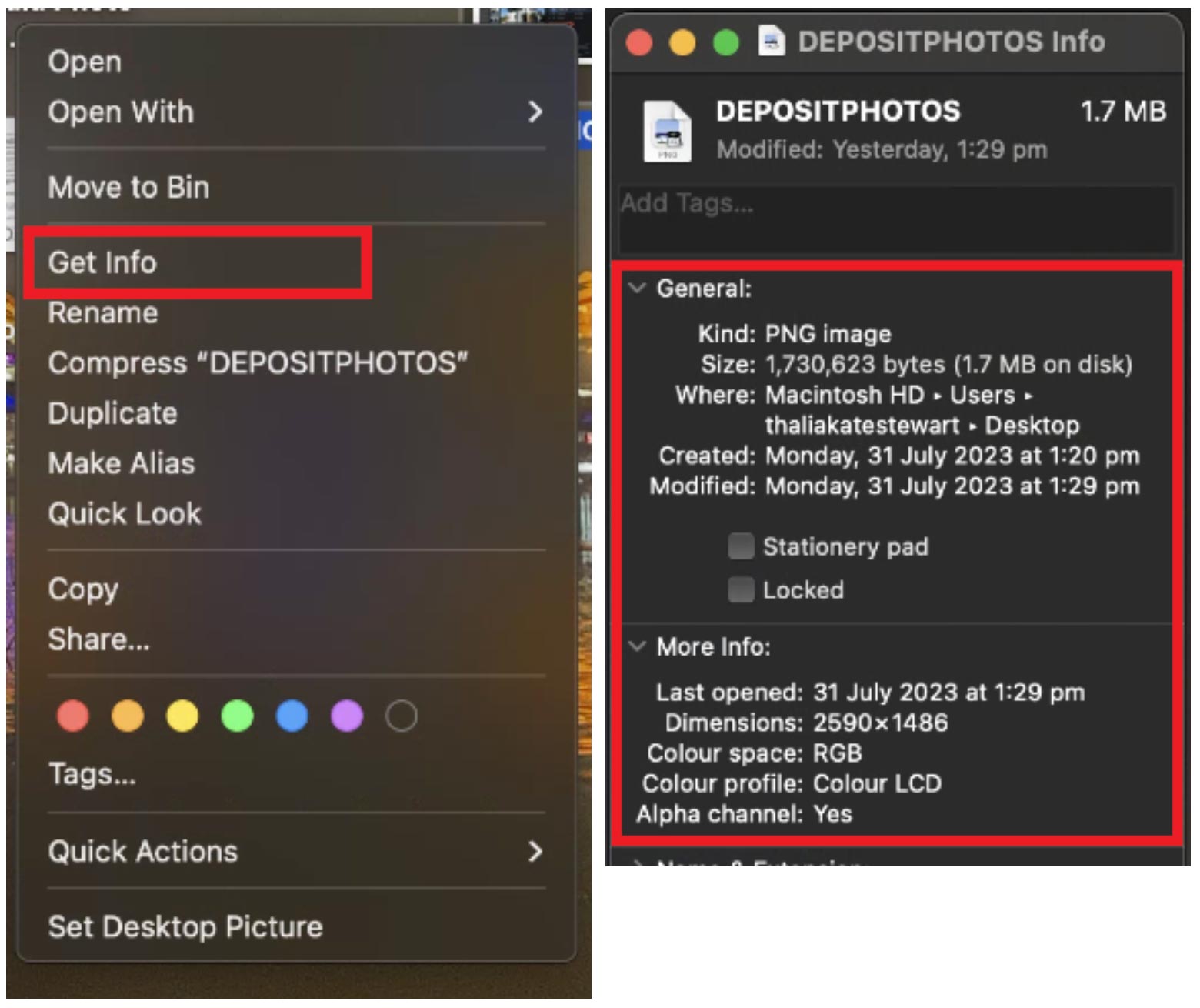
Choose a video > CTRL + Right Click > Get Info > Kind (file type) and Dimensions (size)
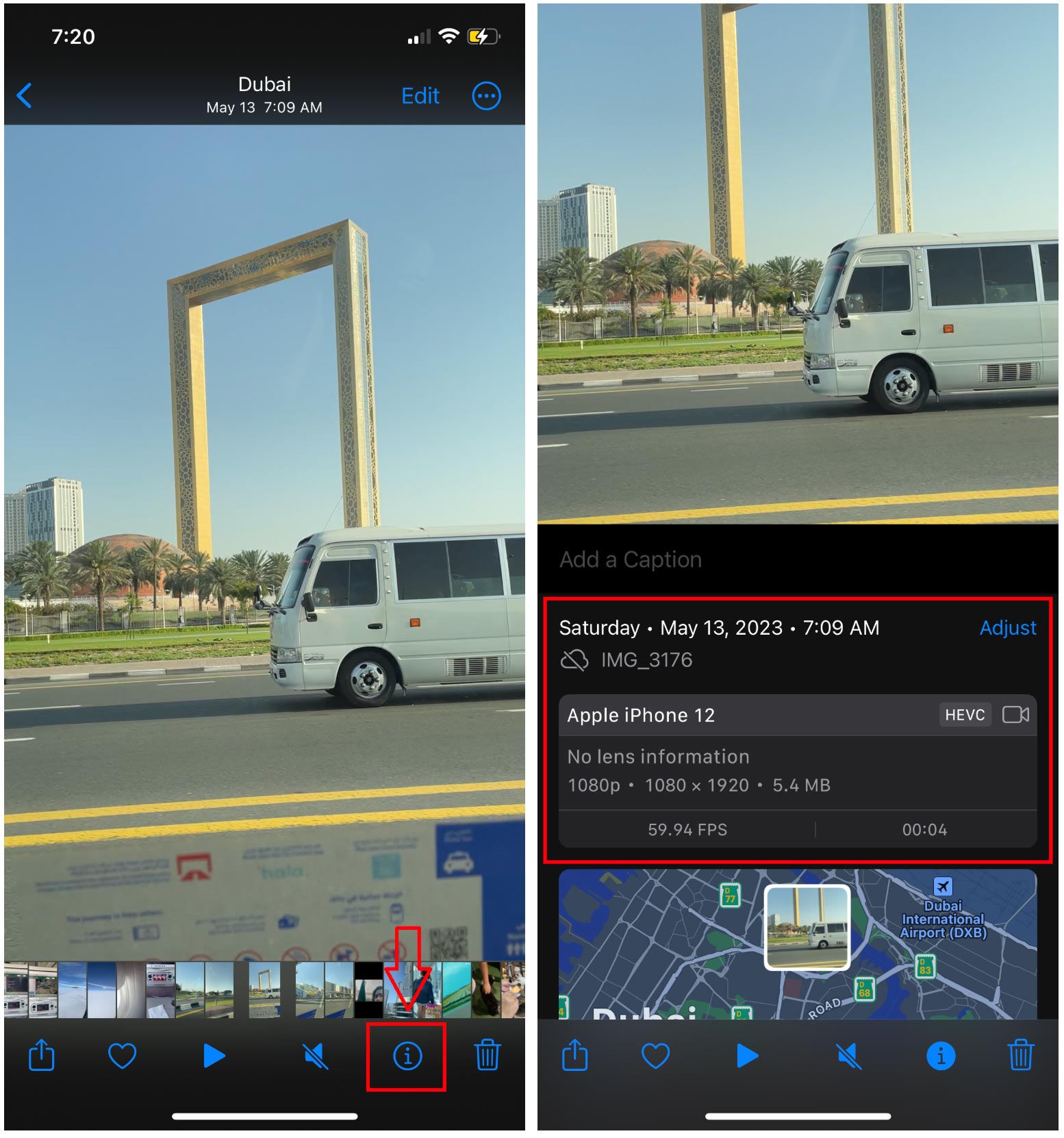
Choose a video > Click information icon (i) > Get Info > Kind (file type) and Dimensions (size). Simply pull up the video you’re interested in, click on it, then hit the little i for information button at the bottom of the screen and you’ll see the size and the file type. Easy.
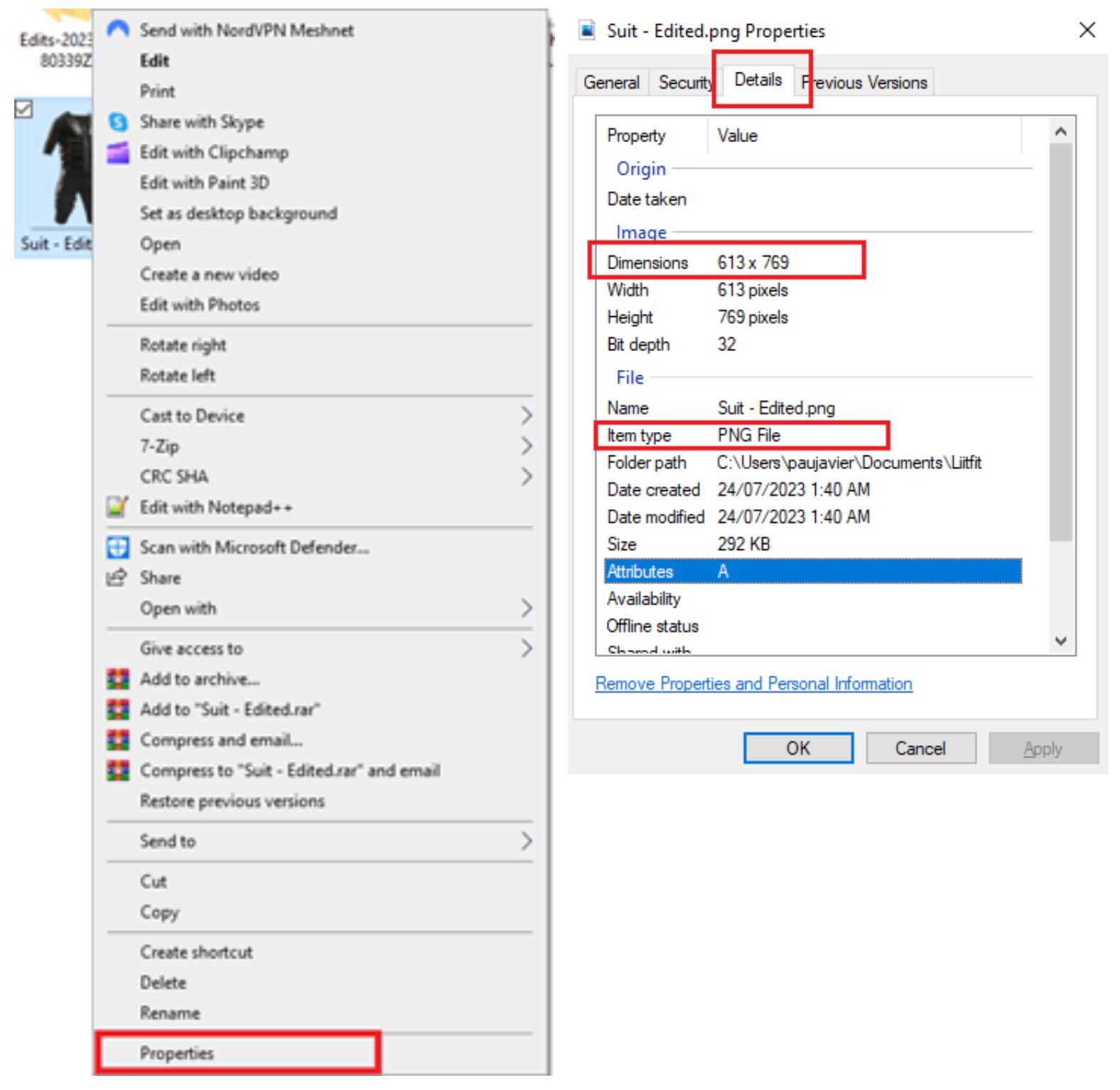
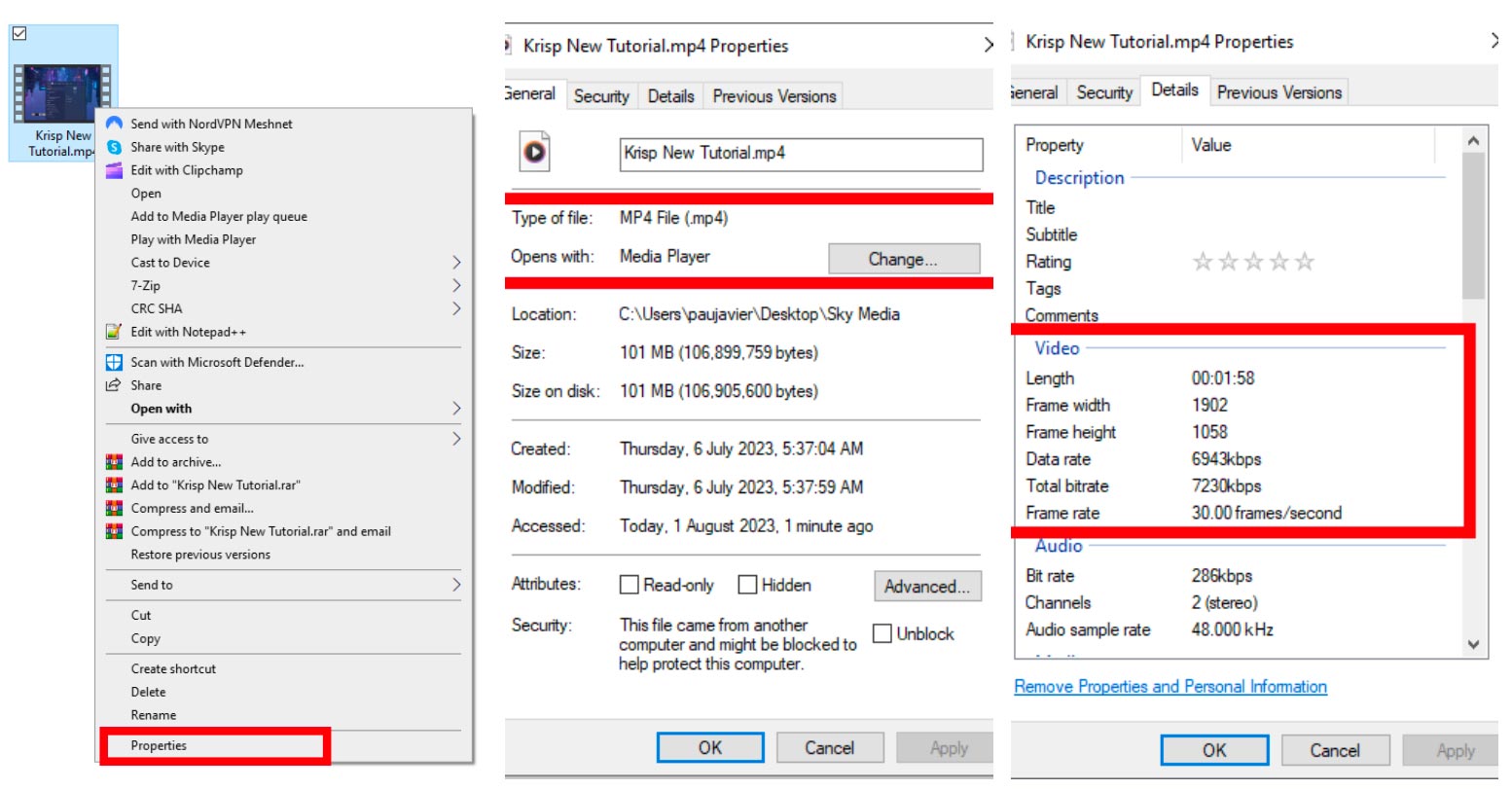
Choose a video > Right Click > Properties > Details > Kind (file type) and Dimensions (size).
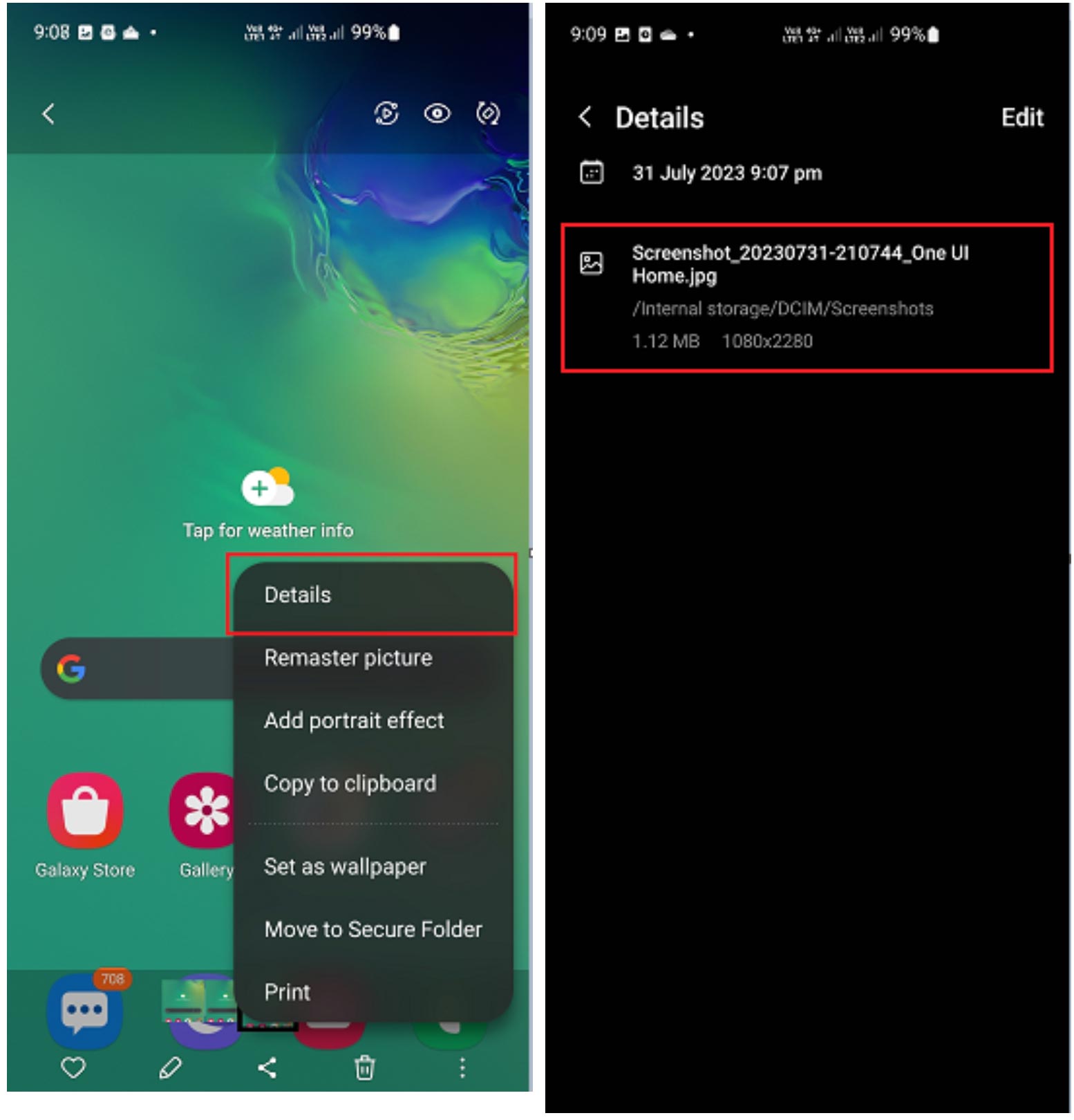
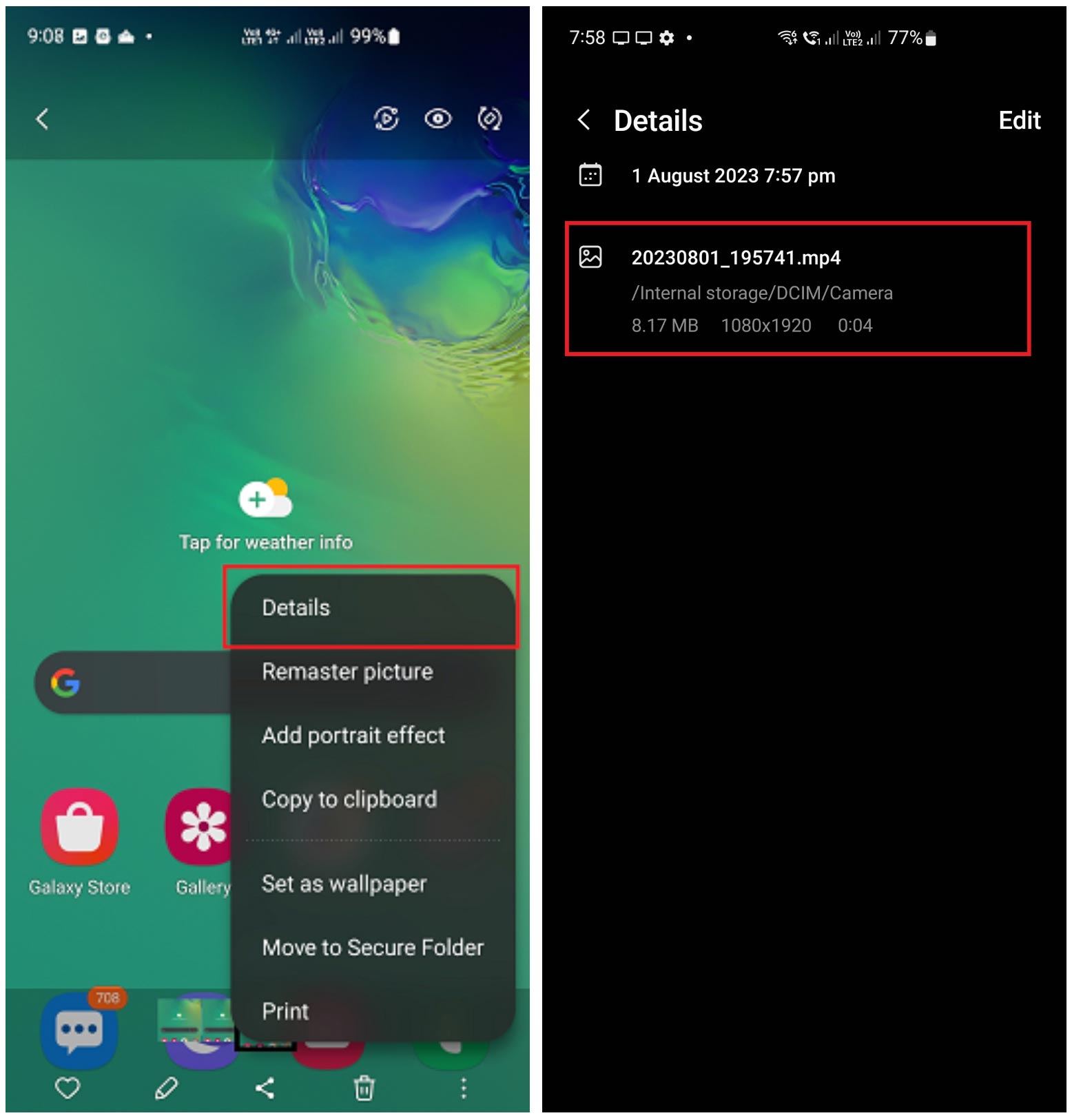
Open the video > more settings > then tap ‘Details’ to view video details.
How to Hire a Professional Videographer

Anyone can take a video, but a professional videographer knows how to take high-quality videos. Professional videographers are often specialists in one, or more of the following areas:

  • Product videography.
  • Property/real estate videography.
  • Commercial/industrial videography.
  • Landscape and/or aerial (drone) videography.
  • Food and beverage videography.
  • Event videography.
  • Fashion videography.
  • Action and sports videography.

If you’re interested in hiring a videographer, it’s wise to ask for examples of their previous work to ensure they’re able to deliver top-quality videos suitable for your business.

Looking to invest in professional videos? At Sky Media, we have access to professional videographers and drone operators starting at $400 + GST per hour, plus travel. Get in touch with our team to discuss.

How to Source Product Videos from Suppliers

If you’re an e-commerce store owner who sells products made by others, then it may be possible to source product videos from your suppliers? Many suppliers and manufacturers provide professional product videos to sellers for free because they know it’ll boost their sales too. If you’re able to source products from a supplier, then it’s best to check that those videos meet the standards outlined above.

Essentials for Product Videos

  • Product videos are best when they’re in the required video format MP4 with at least 1280x720px resolution.
  • Products sell best when the video is well lit.
  • Product videos should be muted, to have no sound, unless the product makes a sound, then that should be the only sound on the recording.
  • Product videos provided from multiple angles are more likely to sell online.
  • Products look best when placed in the centre of the video in front of a plain white background.

How to Select Professional Stock Videos

We can source a range of professional stock videos for as little as $50+GST per video. As an example, if you sell bathrooms, we can source stock videos of bathrooms. Sure, they’re not videos of what you’ve done, but they’re videos of what you do. In many cases, that’s enough to get your website live online.

Our web design and development team know how to select the right images for the right position on each website for a clean look and feel site wide. For this reason, sometimes it’s best to leave stock video sourcing to us, but if you’d like to select your own videos, here’s our top spot for high-quality stock videos:

Deposit Photos https://depositphotos.com/
If you find a video you like on Deposit Photos, be sure to save the Clip ID and send it to us via email, so we can source it for you at a discounted rate or as part of your package.

How to Submit Videos to Sky Media for Your Website

At Sky Media, you can submit your website-worthy videos via the following 3 ways:

  • Google Drive Folder https://www.google.com/drive/
  • Dropbox Folder https://www.dropbox.com/
  • Microsoft OneDrive https://www.microsoft.com/en-ww/microsoft-365/onedrive

Before submitting, please be sure to label your videos appropriately for easy identification e.g.

  • OfficeInside_HomePage.JPEG
  • OfficeOutside_ContactUsPage.JPEG
  • CompanyVehicles_AboutUsPage.JPEG
  • TeamAerial_AboutUsPage.JPEG
  • Bathrooms_Bathtub_ServicesPage.JPEG

With properly labelled videos, we’re able to save a lot of time and ensure all images get to the right place on your website. When you submit your videos to us, you’re confirming that all key decision-makers on your team have approved all the videos for use on the site.

By agreeing to Sky Media’s Limited Terms of Business, you agree that we may charge an additional fee for any time spent reorganising poorly labelled videos that are not fit for your website.

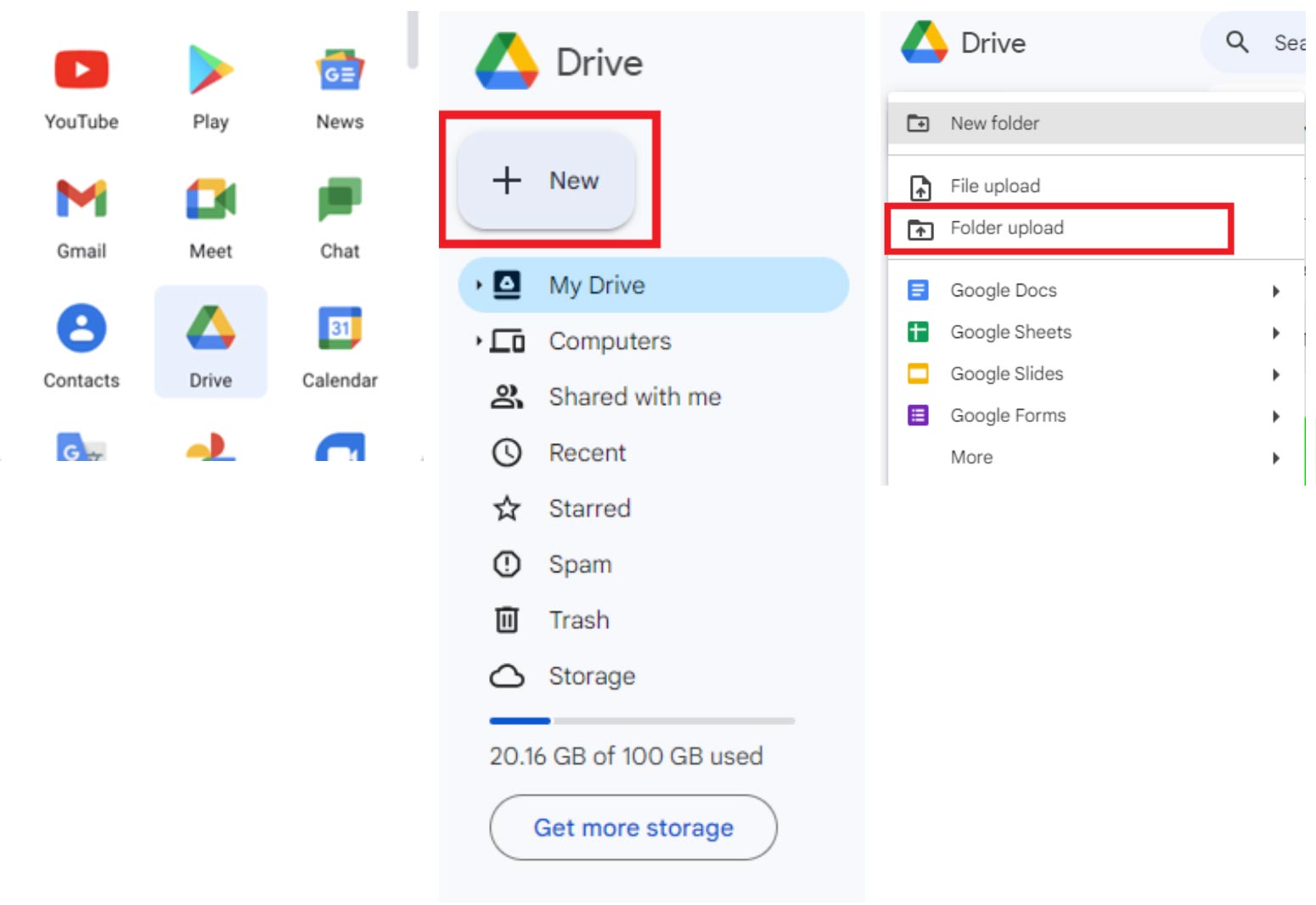
https://www.google.com/drive/

Google > Google Drive > + New > New Folder Upload *Here you can upload a folder from your desktop
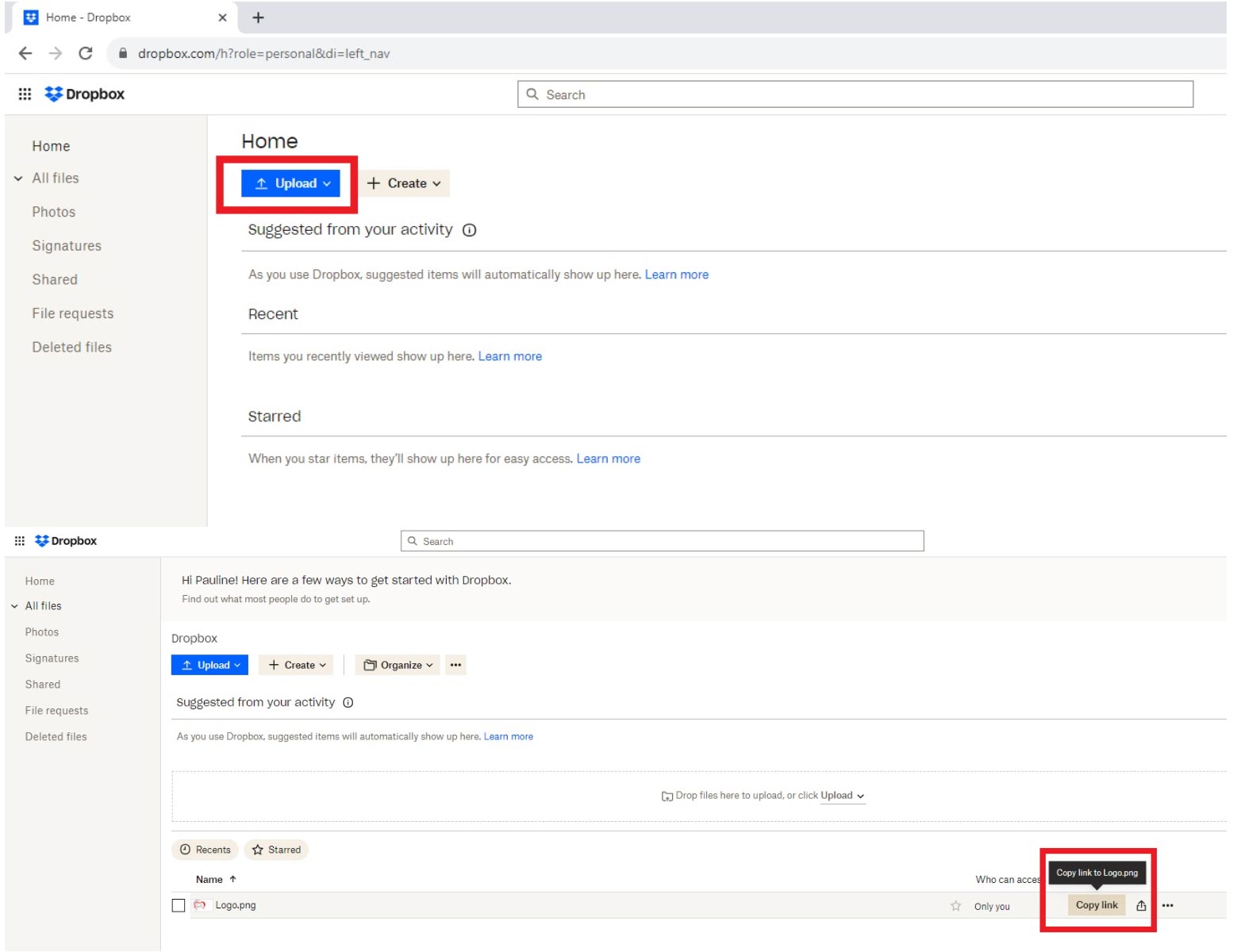
https://www.dropbox.com/

Dropbox > Upload Folder (from your device) > Copy link > Share with Sky Media
https://www.microsoft.com/en-ww/microsoft-365/onedrive

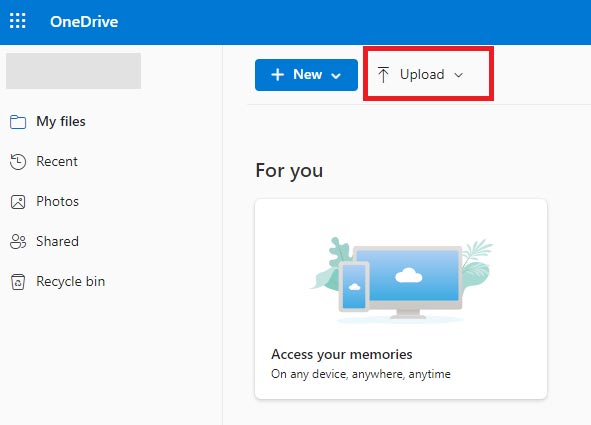
Click the ‘Upload’ button, then select the files/folders you want to upload to OneDrive.
Important: Be sure to add one of our team member’s email addresses to the folder with full permission to edit and then send us an email to be sure we’ve received your videos, as the system may not notify us automatically.

Now, you’re all set. We’re looking forward to creating an up-to-the-minute website that showcases your business in the best light online. Thank you for choosing Sky Media for your website’s design and development.

How to Get High-Quality Photos for Your Website

By Tips and Guides

Professional photos are a business investment, because high-quality website photos communicate the quality of a business’s products and services. Here you’ll find Sky Media’s helpful guidelines for identifying website-worthy photos for your site.

To get high-quality photos for your website, you have 5 different options. You could use 1 or all of these options to create a high-quality look across your website.

  • Utilise your best existing photos
  • Take some top-quality new photos
  • Hire a professional photographer
  • Ask suppliers/wholesalers for product photos
  • Use professional stock images from Deposit Photos

How to Take and Select High-Quality Photos

If you’re considering DIY photography (or using existing photos) it’s critical to consider clarity, balance, lighting, orientation, background, size, and file type, if you’re to achieve website-worthy photos.

Clarity
The image you’re considering must be 100% crystal clear. If the image is fuzzy, blurry, pixelated, or unclear in any way at all, it’s not website-worthy.

Balance
If the object of focus in the centre, or the image itself is not aligned with the photo’s outer frame, it’ll look wonky. Editing tools can adjust images to create balance (we charge extra for this), however it’s best if balance and focal points are considered before photos are taken.

Lighting
If images, products, people or spaces look dark, or hard to see, you’re not placing your offer in the best light – literally. D.I.Y lighting is best achieved outside on an overcast day.

Orientation
You’ll need to ensure photos are fit for purpose in terms of orientation. Most website photos are landscape, so that’s your best bet, but on rare occasions e.g staff photos, portrait orientation is suitable.

Background
The background of an image matters. It’s important that product images or staff photos have a clean clear uncluttered background that’s consistent. Attention to detail creates a high-quality look and feel.

Size
All photos need to be a minimum of 2400x1600px. When the size isn’t right, images may look blurry, pixelated or warped once they’re uploaded to your website. Find out how to check the size of a photo on Mac, iPhone, PC and Android below.

File Type
All photos need to be submitted as JPG, or PNG files. In most cases, your photos will already be JPG, JPEG, or PNG, but it pays to check. If they’re not the right file type, you can often use a file converter online to get the right file. Find out how to check the file type of a photo on Mac, iPhone, PC and Android below.

Quality Control Checklist for Website-Worthy Photos

  • Clarity – Crystal clear.
  • Balance – Centred and steady.
  • Lighting – Well lit.
  • Orientation – Landscape mostly, occasionally portrait.
  • Background – Clean and clear.
  • Size – 2400x1600px.
  • File type – JPG, JPEG, or PNG only.

If your selected photos tick all 7 boxes, then congratulations, it’s highly likely they’ve met Sky Media’s website-worthy quality control standards.

How to Check a Photo’s Size and File Type

All photos need to be a minimum of 2400x1600px. To check the size, or file type of any photo, follow the instructions for MacBook, iPhone, PC and Android below:

Choose a photo > CTRL + Right Click > Get Info > Kind (file type) and Dimensions (size)

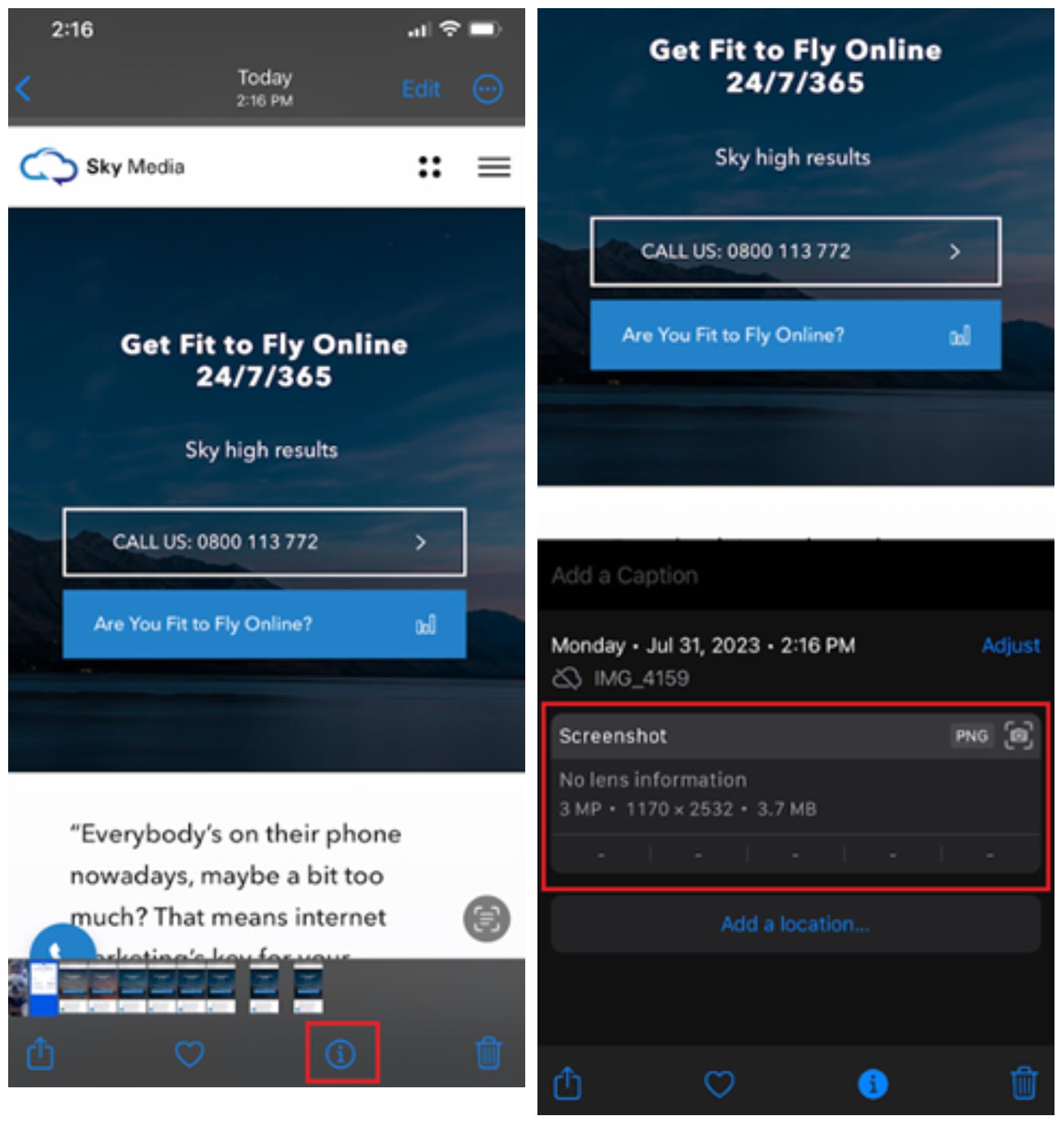
Choose a photo > Click i > Get Info > Kind (file type) and Dimensions (size)Simply pull up the photo you’re interested in, click on it, then hit the little i for information button at the bottom of the screen and you’ll see the size and the file type, which is typically a PNG. Easy.

Choose a photo > Right Click > Properties > Details > Kind (file type) and Dimensions (size)

Open the image > more settings > then tap ‘Details’ to view image details

How to Take High-Quality Team Photos

Top-quality headshots or staff photos can be of great benefit to your business, because people feel more confident doing business with people they can see. All portraits and group photos must meet the photo essentials above, plus a couple of added points…

For team photos, it’s best to do them in house on the same day with the same background for consistency. If you’re asking team members to submit their own photo, then it’s wise to offer guidelines e.g

  • Plain white background
  • Good natural lighting with no shadows
  • Head and shoulders only
  • No sunglasses, or hats
  • Looking directly at the camera
  • Consider a team-wide dress code

Tip: It’s really important that people look directly at the camera and make sincere eye contact, because just like the real world, that’s what builds trust.

How to Hire a Professional Photographer

Anyone can take a photo, but a professional photographer knows how to take high-quality photos. Professional photographers are often specialists in one, or more of the following areas:

  • Portraiture and group photos
  • Product photography
  • Commercial/industrial photography
  • Food and beverage photography
  • Landscape and/or aerial photography
  • Event photography
  • Fashion photography
  • Action and sports photography
  • Property/real estate photography

If you’re interested in hiring a photographer, it’s wise to ask for examples of their previous work to ensure they’re able to deliver top-quality photos suitable for your business.

Looking to invest in professional photos? At Sky Media, we have access to professional photographers starting at $200 + GST per hour, plus travel. Get in touch with our team to discuss.

How to Source Product Photos from Suppliers

If you’re an e-commerce store owner who sells products made by others, then it may be possible to source product photos from your suppliers? Many suppliers and manufacturers provide professional product photos to sellers for free, because they know it’ll boost their sales too. If you’re able to source products from a supplier, then it’s best to check that those photos meet the standards outlined above.

Essentials for Product Photos

  • Product photos are best when they’re in a square format – 1500x1500px minimum.
  • Products sell best when the photo is well lit.
  • Products provided with shots from multiple angles are more likely to sell online.
  • Products look best when placed in the centre of the photo in front of a plain white background.

How to Select Professional Stock Photos

We can source a range of professional stock photos for as little as $20 + GST per photo. As an example, if you sell bathrooms, we can source stock photos of bathrooms. Sure, they’re not photos of what you’ve done, but they’re photos of what you do. In many cases, that’s enough to get your website live online.

Our web design and development team know how to select the right images for the right position on each website for a clean look and feel site wide. For this reason, sometimes it’s best to leave stock image sourcing to us, but if you’d like to select your own photos, here’s our top spot for high-quality stock photos:

Deposit Photos https://depositphotos.com/
If you find a photo you like on Deposit Photos, be sure to save the Image ID and send it to us via email, so we can source it for you at a discounted rate or as part of your package.

How to Submit Photos to Sky Media for Your Website

At Sky Media, you can submit your website-worthy photos via the following 3 ways:

  • Google Drive Folder https://www.google.com/drive/
  • Dropbox Folder https://www.dropbox.com/
  • Microsoft OneDrive https://www.microsoft.com/en-ww/microsoft-365/onedrive

Before submitting, please be sure to label your images appropriately for easy identification e.g

  • Headshot_CEO_Jacob_HomePage.JPEG
  • Office_Outside_ContactUsPage.JPEG
  • CompanyVehicles_AboutUsPage.JPEG
  • TeamPhoto_AboutUsPage.JPEG
  • Bathrooms_Bathtub_ServicesPage.JPEG

With properly labelled photos, we’re able to save a lot of time and ensure all images get to the right place on your website. When you submit your photos to us, you’re confirming that all key decision-makers on your team have approved all of the photos for use on the site.

By agreeing to Sky Media’s Limited Terms of Business, you agree that we may charge an additional fee for any time spent reorganising poorly labelled photos that are not fit for your website.

https://www.google.com/drive/

Google > Google Drive > + New > New Folder Upload *Here you can upload a folder from your desktop

https://www.dropbox.com/

Dropbox > Upload Folder (from your device) > Copy link > Share with Sky Media

https://www.microsoft.com/en-ww/microsoft-365/onedrive

Click the ‘Upload’ button, then select the files/folders you want to upload to OneDrive.

Important: Be sure to add one of our team member’s email addresses to the folder with full permission to edit and then send us an email to be sure we’ve received your photos, as the system may not notify us automatically.

Now, you’re all set. We’re looking forward to creating an up-to-the-minute website that showcases your business in the best light online. Thank you for choosing Sky Media for your website’s design and development.