Tips and Guides10

Stay ahead with Sky Media’s latest SEO, web design, and Google Ads tips. Practical advice for Kiwi businesses to boost their online success.

Essential guide on how to write a website design brief for a successful project.

Your Blueprint for Success: How to Brief Your Website Design Team

By Tips and Guides, Web Design

You’ve made the exciting decision to invest in a new website. It’s a project filled with potential—the chance to revitalise your brand, connect with more customers, and finally have an online presence that truly works for your business. But before you see stunning mock-ups or click through a sleek new interface, there’s a critical first step that will make or break your entire project: the brief.

Essential guide on how to write a website design brief for a successful project.

Think of your website brief as the blueprint for a new house. You wouldn’t approach a builder and say, “Build me a house,” without discussing the number of bedrooms, the style of the kitchen, or the location of the bathrooms. The same goes for your website. A vague request like, “Make me a modern website that generates leads,” leaves far too much room for interpretation, delays, and budget overruns.

A powerful, well-constructed brief is your single most important tool for a successful partnership with your web agency. It aligns your vision with their expertise, setting the stage for a smooth, efficient, and rewarding process that delivers a website you’re proud of.

This guide will walk you through, step-by-step, how to create a comprehensive website brief that will get your project started on the right foot.

Why the Brief is Your Secret Weapon

Many business owners see the brief as a bureaucratic hurdle. In reality, it’s your strategic advantage. A great brief:

Creates Clarity and Alignment: It ensures everyone—your team and the agency—is on the same page from day one. There are no surprises about goals, scope, or style.

Saves You Time and Money: A clear brief reduces the back-and-forth, countless revisions, and scope creep that inflate budgets and delay launches. The agency can quote accurately and work efficiently.

Establishes a Measurable Goal: How do you know if the new website is a success? The brief defines the key performance indicators (KPIs) upfront, so you can measure the return on your investment.

Empowers the Agency’s Creativity: Counterintuitively, constraints encourage creativity. When an agency understands your boundaries and objectives deeply, they can innovate within that space to deliver truly brilliant solutions.

In short, the time you invest in the brief will be repaid tenfold throughout the project.

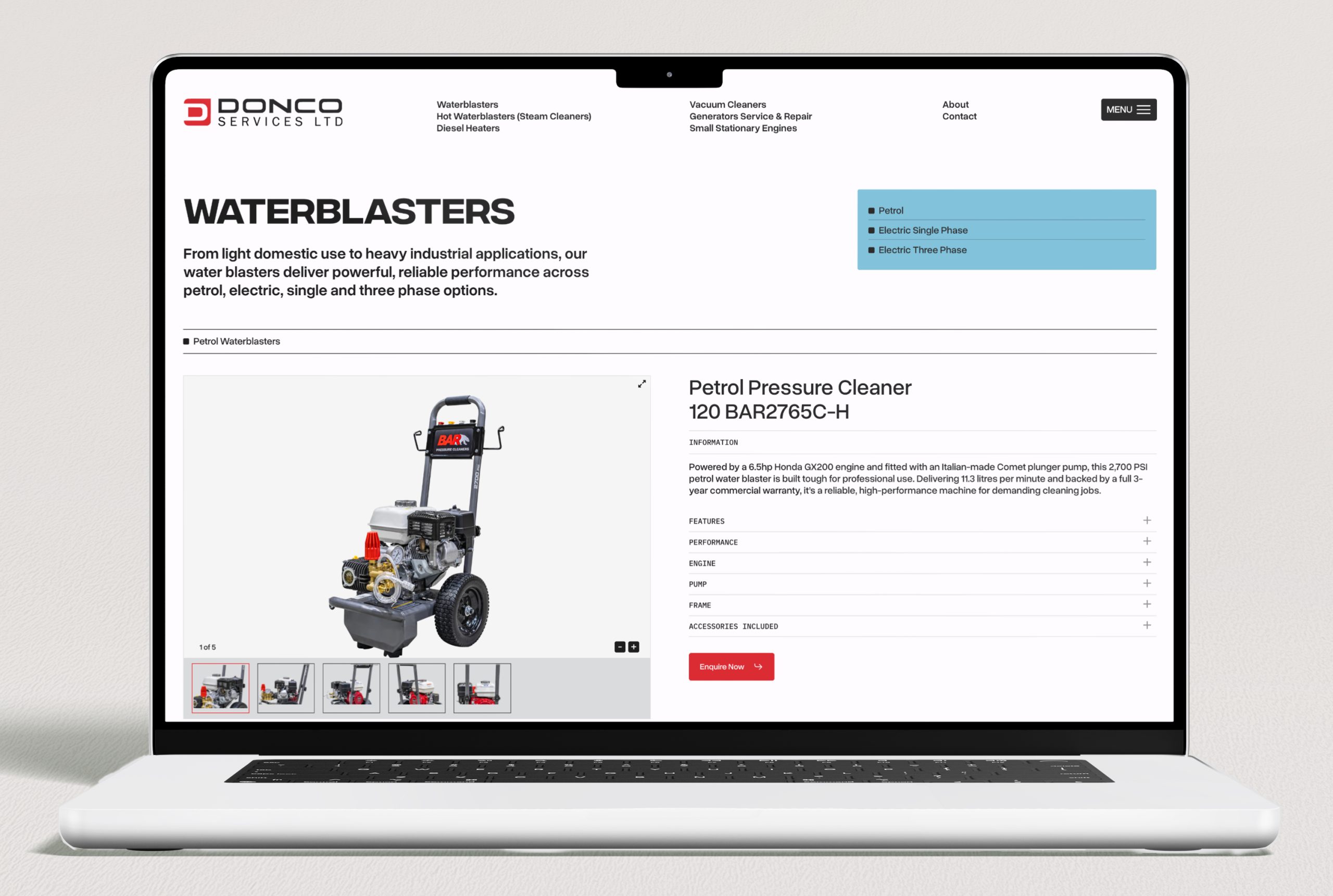
WordPress website design for TWC by Sky Media.

WordPress website design for TWC by Sky Media.

The Anatomy of a Perfect Website Brief: A Step-by-Step Guide

Ready to build your blueprint? Here are the essential components you need to include.

Step 1: Tell Your Story (The Company Overview)

Start by introducing your business to the agency as if they know nothing about you. This context is invaluable.

  • Who are you? What is your company’s name and what do you do?
  • What is your mission? What core purpose drives your business?
  • What are your core values? Is your brand playful and disruptive, or trusted and authoritative?
  • What is your unique selling proposition (USP)? What makes you different from and better than your competitors?

Pro Tip: Include links to any existing brand guidelines, logos, and your current website. This gives the agency an immediate feel for your brand’s world.

Step 2: Define the “Why” (Project Goals & Objectives)

This is the heart of your brief. Be specific about what you want this new website to achieve. Avoid vague statements.

Instead of: “I want more traffic.”
Write: “We aim to increase organic traffic from 5,000 to 10,000 monthly visitors within 12 months of launch, and grow our email newsletter sign-ups by 25%.”

Common website goals include:

  • Generate more qualified leads (e.g., contact form submissions, demo requests).
  • Increase online sales and revenue.
  • Improve brand awareness and perception.
  • Reduce customer support calls by providing better self-service resources.
  • Attract top-tier talent to our careers page.

Ask yourself: “If this website could only achieve one thing, what would that be?” This helps you identify your primary objective.

Step 3: Know Your Audience (Target Audience)

You wouldn’t design a children’s toy using the same language and colors as a financial report. Your website must be built for its intended users.

  • Who are your ideal customers? Create simple buyer personas. Give them names like “Marketing Mary” or “IT Director Ian.”
  • What are their demographics? (Age, location, job title, industry)
  • What are their pain points? What problems are they trying to solve that your business can help with?
  • What are their goals and motivations? What does success look like for them?
  • How do they search for solutions? What language do they use? What information do they need to make a decision?

Pro Tip: If you have any customer interviews, survey data, or support tickets, share them. This is gold dust for the agency to understand your audience’s real voice.

Step 4: Scope the Work (Project Scope)

This section outlines the “what” of the project. It defines the boundaries and helps the agency provide an accurate quote. Be explicit about what you need built.

  • Number of Pages: Do you need a 5-page brochure site or a 50-page content-rich hub? (e.g., Home, About, Services, Blog, Contact)
  • Key Functionalities: What does the website need to do?
    • E-commerce shopping cart and payment processing?
    • A membership portal or login area?
    • A booking or appointment scheduling system?
    • A complex contact form with dropdowns and file uploads?
    • Integration with your CRM (like Salesforce or HubSpot)?
  • Content Creation: Who is responsible for writing the website copy and providing the professional photos? (Be aware, this is often the client’s responsibility unless specifically included in the agency’s scope).

Step 5: Paint a Picture of Success (Design & User Experience)

This is where you guide the agency’s creative direction. Don’t just say what you like; explain why.

  • Brand Guidelines: Reiterate any specific colors and fonts that must be used.
  • Desired Look & Feel: Use descriptive words. Do you want the site to feel:
    • Warm and inviting, or cool and professional?
    • Bold and energetic, or minimalist and serene?
  • Inspirational Examples (The “Do’s and Don’ts”): This is incredibly helpful. Provide 3-5 links to websites you admire and explain what you like about them (e.g., “I love the navigation on this site,” or “The use of animation here is engaging but not distracting”). Also, provide examples of what you don’t like.
  • User Journey: Briefly describe the ideal path you want a visitor to take. For example: “A visitor lands on our blog, reads an article, clicks a call-to-action to download a guide, and is then presented with a contact form to book a consultation.”

Step 6: Plan for Growth (SEO & Ongoing Marketing)

A website is not a “build it and forget it” asset. Discuss its future from the start.

  • SEO Strategy: Do you have an existing SEO strategy? Are there specific keywords you are already ranking for that you want to preserve? Does the agency need to conduct new keyword research?
  • Technical Requirements: Do you need the site to be multilingual? Is mobile-first performance a top priority?
  • Analytics: How will you track performance? Ensure Google Analytics 4 (GA4) and Google Search Console are part of the setup.
  • Ongoing Maintenance: Who will handle security updates, backups, and technical support after the site launches? Clarify if this is part of the agency’s ongoing retainer.

Step 7: Set the Stage (Practical Details)

Finally, lay out the logistical framework for the project.

  • Project Timeline: Do you have a specific launch date in mind? (e.g., tied to a product launch or a season). Be realistic and discuss this with the agency.
  • Budget Range: This is crucial. Providing a realistic budget range allows the agency to propose solutions that fit your financial constraints. It shows you are serious and saves everyone time.
  • Key Stakeholders: Who is the main point of contact on your side? Who has the final sign-off on designs and content?
  • The Next Steps: What do you expect to happen after you send the brief? A meeting? A formal proposal?
WordPress website design for Epic Events by Sky Media.

WordPress website design for Epic Events by Sky Media.

What to Do After You Send the Brief

Your job isn’t done once the brief is sent. The best client-agency relationships are partnerships.

  1. Schedule a Kick-off Meeting: Don’t just email the document. Schedule a call to walk through it together. This allows for immediate questions and discussion.
  2. Be Open to Questions: A good agency will probe deeper into your brief. Welcome their questions—it shows they are thinking critically about your project.
  3. Collaborate, Don’t Dictate: You are the expert on your business; they are the experts in web design and development. Trust their professional advice when they suggest a different approach based on your goals.

Common Pitfalls to Avoid

  • Being Too Vague: “Make it pop” is not actionable feedback.
  • Withholding Your Budget: This leads to proposals that are either unrealistically high or too basic for your needs.
  • Design by Committee: While feedback is important, having too many decision-makers can paralyse a project. Appoint a single point of contact.
  • Scope Creep: Adding new features and pages mid-project is the primary cause of budget and timeline blowouts. Please stick to the agreed-upon scope, or formally agree on changes and their impact.

Conclusion: Your Partnership Starts Here

A powerful website is the cornerstone of modern business. It’s your hardest-working employee, your 24/7 salesperson, and the face of your brand to the world. By investing time in creating a clear, comprehensive, and collaborative brief, you lay the foundation for a successful project and a final product that not only looks beautiful but also delivers tangible business results.

Your brief is more than a document; it’s the opening conversation in a partnership. Make it count.

Ready to turn your vision into a website that drives growth? The team at Sky Media are experts in translating ambitious briefs into stunning, high-performing digital experiences. Contact us today for a no-obligation consultation about your project.

Modern website design generating online enquiries and sales leads.

Simple Ways to Get Better Leads from Your Website

By Tips and Guides, Web Design

Every business wants more website traffic. But traffic alone doesn’t pay the bills — quality leads do.

At Sky Media, we often meet business owners who’ve invested in a new website that sadly brings in little to no work. The truth is: design alone isn’t enough. To make your website work as a real sales tool, you need strategy, structure, and clear communication.

Modern website design generating online enquiries and sales leads.

Below, we break down how the Sky Media team approaches building a website that not only looks great, but consistently attracts and converts the right kind of leads — the ones that fit your services, your values, and your price point.

1. Start With the Goal — Not the Design

Before picking colours or fonts, get clear on what success looks like.
Ask yourself: what do you actually want people to do when they land on your website? Do you want them to call you, request a quote, make a booking, or download a guide?

Once you know the goal, everything else — the layout, images, and copy — should serve that purpose. A site without a goal is like a billboard with no message.

For example, a trades company might have one primary goal: get quote requests. That means the contact form, CTA buttons, and copy should all nudge visitors toward that action.

Tip: Write your main goal at the top of your design brief. Every section of your website should move visitors closer to that goal. If it doesn’t, it probably doesn’t need to be there.

2. Know Who You’re Talking To

You can’t speak to everyone. The best-performing websites speak clearly to a defined audience — and make those people feel understood.

  • Start by thinking about your ideal client:
  • What do they want most?
  • What problems or frustrations do they face?

What would make them trust you?

Once you understand your audience, reflect that understanding through your design and words. A scaffolding company in Dunedin, for example, might focus on reliability and winter shrink-wrapping solutions, while a dance academy might highlight family-friendly classes and community connection.

When people feel your website “gets” them, they’re far more likely to get in touch.

A scaffolding company in Dunedin - Bramwell Scaffolding website
Awaken Dance a dance academy website design

3. Design for Action, Not Distraction

Beautiful websites don’t automatically perform well. Function should lead form. Your design should guide people — not just impress them.

That means using clean layouts, plenty of white space, and logical flow. Too many colours, flashing banners, or competing buttons just confuse visitors.

Every page should have one clear next step: book a call, get a quote, sign up. When someone lands on your homepage, it should take no more than three seconds to see what you offer and what to do next.

Use language that’s helpful and specific. Instead of a generic “Submit” button, say “Get A Quote” or “Book A Free Call.”

The goal is to make action feel easy and obvious.

4. Turn Every Service Page into a Sales Page

Think of each service or product page as a mini sales pitch. Your homepage gives the overview, but it’s the deeper pages that actually close the deal.

Each service page should have:

A clear headline that promises value (“Fast, Reliable Scaffolding for Dunedin Builders”).

A few paragraphs explaining how you help and why it matters.

Proof that builds trust — testimonials, client logos, or short case studies.

A strong call-to-action encouraging the next step.

For example, if you’re an electrician, a service page about “New Build Wiring” could include photos of past projects, your safety certifications, and a form that says, “Tell us about your new build — we’ll reply within 24 hours.”

Remember: people don’t buy services, they buy outcomes. Tell them what they’ll gain — not just what you’ll do.

Bramwell Scaffolding services page design example for lead generation
TWC website service page design example for lead generation

5. Speak Like a Human (Copy That Builds Trust)

Good website copy doesn’t sound clever — it sounds clear.

Your visitors are busy. They don’t want jargon or buzzwords like “innovative solutions” or “synergistic platforms.” They want to know, quickly, whether you can solve their problem.

Use plain language, short sentences, and active verbs. Focus on benefits — what your service does for them.

Example:
Instead of saying “We deliver innovative scaffolding solutions.”, say: “We build strong, safe scaffolds that help your team finish faster.”

Small changes in tone can transform your message from vague to confident.

Also, use your customer’s language. If they say “house painting,” don’t call it “residential coating systems.” Speak their words back to them — that’s what builds connection.

6. Speed, Mobile, and SEO — The Silent Heroes

Even the best copy won’t help if your site takes ten seconds to load or doesn’t work on mobile.

Most visitors decide within seconds whether to stay or leave. If your pages are slow or broken on mobile, they’ll bounce before reading a word.

That’s why at Sky Media we prioritise:

  • Fast loading times (compressed images, optimised code).
  • Mobile-first design that looks great on every screen.
  • SEO-friendly structure — clear headings, internal links, and page titles that match what people search for.

Search engine optimisation (SEO) isn’t just about ranking on Google — it’s about helping the right people find you. If someone searches “Villa Painting Auckland,” they should land on a page that answers that need directly — not your homepage with a generic message.

7. Make Getting in Touch Effortless

If someone has to dig around to find your contact form, you’ve already lost them. Make the next step obvious and easy.

Keep your forms short — name, email or phone, and one key question is often enough. On mobile, make sure phone numbers are clickable so people can call with one tap.

Tools like Calendly or booking systems are great for service businesses. They let potential clients book a chat or consultation instantly — no back-and-forth emails required.

And don’t forget your thank-you page. It’s a small but powerful touchpoint. Use it to confirm you’ve received their message, tell them when they’ll hear back, and maybe offer a useful resource while they wait.

8. Measure, Review, and Improve

A great website isn’t built once and forgotten. It evolves.

Sky Media uses analytics tools like Google Analytics and Google Site Kit to see what’s working — and what’s not. Which pages bring in the most enquiries? Where do people drop off? Which buttons get clicked?

With that data, we can make small, strategic changes. Test a new headline, rewrite a call-to-action, or simplify your form.

Even minor tweaks can dramatically boost conversion rates. We’ve seen clients increase the number of their leads just by refining button text or rearranging key content.

Calendly booking systems on the Lily's Choice website
Request a quote contact page design on Bramwell website

9. Common Lead-Killing Mistakes to Avoid

Many websites fail because of small but costly mistakes:

  • Too many options: Too many menu items or buttons overwhelm users. Guide them clearly.
  • Walls of text: Break up long paragraphs with headings, short sentences, and images.
  • Slow pages: Optimise your images — large, uncompressed files can slow you to a crawl.
  • Weak CTAs: “Contact Us” is fine, but “Get a Free Quote in 24 Hours” works better.
  • Vague messages: Be specific about what you do and where you do it.

Fixing these basics can instantly make your site feel smoother and more professional — and that confidence translates into more leads.

10. Turn Your Website into Your Best Salesperson

When your website is built with purpose, clarity, and empathy, it becomes more than an online brochure — it becomes your hardest-working salesperson.

It never takes holidays, it doesn’t forget to follow up, and it presents your business exactly how you want to be seen, 24 hours a day.

The combination of strategy, smart design, and consistent optimisation is what turns a static site into a lead-generating asset. And that’s exactly what we build for our clients at Sky Media.

Ready to Turn Your Website into a Lead-Winning Machine?

At Sky Media, we design and develop WordPress websites that look sharp and bring in the right kind of enquiries. From initial strategy to ongoing SEO, we focus on clarity, conversion, and measurable results.

Let’s chat about how your current site could perform better — we can provide a quick review, highlight missed opportunities, and outline a plan to get you more of the leads you actually want. Book a 15-Minute Strategy Call.

Smartphone showing successful WordPress maintenance and updates, symbolising reliable website support.

Why Every WordPress Website Needs Ongoing Support

By Tips and Guides, Web Design

Your website isn’t finished the day it goes live. Just like a car, it needs regular care to stay fast, safe, and running smoothly. That’s where a WordPress support retainer comes in — a monthly plan that keeps your website performing at its best while you focus on running your business.

Smartphone showing successful WordPress maintenance and updates, symbolising reliable website support.

At Sky Media, we host and look after WordPress websites for businesses all over New Zealand. Our support retainers take the stress out of updates, security, and maintenance, giving you peace of mind that your site is always in good hands.

What Is a WordPress Support Retainer?

A WordPress support retainer is an ongoing partnership — we handle the technical side so you don’t have to. It’s a simple monthly plan that includes:

  • Regular updates to WordPress, themes, and plugins
  • Security checks and malware protection
  • Daily backups so your data is safe
  • Performance monitoring to keep pages loading fast
  • Small changes like content edits or new landing pages
  • Priority support when something breaks or needs tweaking

Instead of paying for emergency fixes, you get consistent care from a team that knows your site inside and out.

Infographic showing key inclusions in Sky Media’s WordPress support retainer plan

Why Add a Support Retainer to Your Hosting Plan?

Your hosting keeps your website online — your support retainer keeps it healthy, secure, and growing. Together, they form the foundation of a reliable digital presence.

Here’s why it’s worth it.

1. Your Site Stays Fast and Reliable

A slow website can lose visitors in seconds. Our team monitors your site’s speed, fixes issues before they become problems, and makes sure every update improves performance rather than breaks it.

When you’re on a Sky Media retainer, we’re already familiar with your setup — no delays, no guesswork.

2. Security You Can Trust

WordPress is popular, which makes it a target for hackers. We install the latest security patches, monitor for unusual activity, and back up your site daily.

If something ever does go wrong, we can restore your website quickly — no panic, no downtime.

3. Regular Updates Without the Hassle

WordPress, plugins, and themes are constantly updated. Ignoring updates can cause errors or leave security holes. We handle all updates safely through testing, ensuring your site stays current and stable.

No more worrying about clicking “Update” and crossing your fingers.

4. Better SEO and User Experience

Search engines love well-maintained websites. We keep your pages loading quickly, fix broken links, and make sure your site structure stays Google-friendly.

And because updates can affect how your site looks and works, we regularly check that every button, form, and image performs the way it should.

5. Predictable Monthly Costs

Instead of surprise bills when something breaks, you’ll have one predictable monthly cost. It’s usually far cheaper than paying for urgent fixes or hiring an in-house developer.

A retainer also includes small change requests — adding a new service page, tweaking images, or updating content — so you can keep your site fresh without extra invoices.

6. Sky Media Team Behind You

With Sky Media, you get an experienced local team who understand Kiwi businesses. We become an extension of your team — available by phone or email whenever you need help.

We’ll get to know your brand, your goals, and your customers so we can make your website work smarter for you.

7. Peace of Mind

When you’re busy running a business, the last thing you need is to worry about your website. Our support retainers mean no more late-night error messages or sudden outages.

We handle all the behind-the-scenes work — you just enjoy a site that’s always online, secure, and performing.

Comparison infographic showing benefits of Sky Media’s WordPress support retainers versus no support.

What’s Included in Sky Media’s Support & Hosting Plans

Our combined Hosting + Support Packages make website management effortless:

FeatureWhat You Get
NZ-Based HostingFast, reliable servers optimised for WordPress hosting
Daily BackupsAutomatic, off-site backups so nothing is lost
Security ProtectionFirewall, malware scan, and spam prevention
Software UpdatesWordPress, theme, and plugin maintenance
Performance OptimisationRegular speed checks and clean-ups
Content & Design TweaksMinor updates and copy changes
Priority SupportA simple summary of work completed and improvements made

How a Support Retainer Helps Your Business

  • Saves time: You focus on your business, not website problems.
  • Protects your investment: Regular updates keep your site secure and extend its lifespan.
  • Improves results: A well-maintained site converts more visitors into leads or sales.
  • Supports growth: Need to update a page or feature? We can do it quickly.
  • Gives peace of mind: Your site is monitored, backed up, and supported by experts.

Who Is It For?

A support retainer is ideal for:

  • Small-to-medium Kiwi businesses that depend on their website for sales or leads
  • E-commerce stores running WooCommerce
  • Service-based businesses that can’t afford downtime
  • Marketing teams that need quick updates and campaign support

Why Choose Sky Media

We’re not just hosting providers — we’re your digital partners. Our WordPress specialists manage hundreds of NZ websites, combining technical expertise with friendly, local support.

  • 100 % NZ-owned and operated
  • Transparent pricing with no hidden costs
  • Fast, helpful support provided by NZ based team
  • SEO-friendly hosting environment
  • Proven track record helping NZ businesses grow online

Ready for a Worry-Free Website?

Don’t wait until something breaks. Keep your site secure, fast, and future-proof with a Sky Media WordPress Support Retainer.

Let’s make sure your website always performs at its best — so you can focus on what matters most: running your business. Talk to our team.

How to Choose the Perfect Domain Name for Your NZ Business

By Tips and Guides

Your domain name is the digital front door to your business. It’s often the very first interaction someone has with your brand, even before they click on your website. If it looks professional, trustworthy, and easy to remember, people are far more likely to visit. If it feels clunky, confusing, or spammy, they’ll click away before you’ve had the chance to impress them.

For New Zealand businesses especially, where many industries are competitive and consumer trust is everything, a smart domain choice can give you the edge. Whether you’re a start-up, a local tradie going online for the first time, or an established brand refreshing your web presence, your domain is the cornerstone of your online identity.

In this guide, we’ll walk through practical tips to help you secure a domain name that builds credibility, supports your marketing, and helps customers find you with ease.

Why Your Domain Matters

Think of your domain name as the address of your digital shopfront. If your physical shop was hidden down a confusing alley with no sign, would customers easily find it? Probably not. Online, it’s the same — if your domain name is hard to type, spell, or remember, you’re already putting unnecessary roadblocks in the way of new customers.

A strong domain impacts:

  • Brand recognition: It’s what people will type, remember, and recommend to others.
  • Trust and credibility: Professional domains (e.g., “business.co.nz”) instantly appear more legitimate than something like “bestplumbers123.biz”.
  • SEO: While not the only factor, keywords and clarity in your domain can support your rankings in Google searches.
  • Marketing: Short, catchy domains are easier to put on business cards, signage, or ads.

Now let’s dive into the practical tips for choosing the right one.

1. Keep It Short & Simple

The golden rule: less is more. Short domains are easier to type, less prone to errors, and stick better in people’s minds. Imagine someone trying to recall your business at the weekend BBQ — “Check out Joe’sPlumbingAndBathroomSolutionsInWellington.co.nz” isn’t going to fly.

Big brands know this. Think Xero, Spark, or TradeMe — one or two words max, no wasted characters. Even if you can’t get something that short, aim to keep it under 15 characters where possible. The shorter and simpler it is, the more professional it feels.

2. Easy to Spell & Say

If your domain name is constantly being misspelled, you’re leaking traffic to other websites. Names with unusual spelling (e.g., “KrazyKleaners”) may feel unique but often backfire when someone types “CrazyCleaners” instead and ends up somewhere else.

Think about word-of-mouth marketing: if someone hears your name on the radio or from a friend, can they type it into Google without asking for clarification? If the answer is no, it’s worth rethinking.

Pro tip: Say your domain out loud. If it doesn’t pass the “radio test” — easy to pronounce, spell, and understand without context — it’s not the right fit.

3. Skip the Slang

Trendy names might sound fun now, but what about in 10 years? Slang changes fast, and what feels current today could sound outdated tomorrow. For example, a term like “lit” might’ve worked five years ago, but today it already feels stale.

Your domain should be timeless. Ask yourself: will this still make sense in 2030? If not, consider something more neutral or evergreen.

4. Make It Relevant

Clarity beats cleverness online. While quirky brand names can work (think “Uber” or “Google”), those companies also spend millions building awareness. For most NZ businesses, clarity wins.

If you’re a builder in Nelson, “NelsonBuilders.co.nz” immediately tells people who you are and what you do. Customers don’t have to guess — and that simplicity is powerful. That said, don’t limit yourself too much. If you ever expand into other services, make sure the name still fits.

5. Avoid Numbers & Hyphens

Adding numbers or hyphens is usually a recipe for confusion. For example, “Best-Plumbers-4-U.co.nz” looks messy, sounds unprofessional, and is almost guaranteed to be mistyped.

Unless your business name legally includes numbers (e.g., “Studio42”), keep your domain clean. Hyphens, in particular, create unnecessary friction and can even harm SEO.

6. Ensure It’s Pronounceable

Ever noticed how the most successful brands are easy to say? Apple. Tesla. Canva. The same rule applies to domain names. If your domain is a tongue-twister, people will avoid saying it out loud, which kills free word-of-mouth marketing.

Think of your domain as part of your elevator pitch. If you can confidently say, “Visit us at NelsonPlumbing.co.nz” without stumbling, you’re onto a winner.

7. Use Keywords (Smartly)

Keywords like “plumbing,” “florist,” or “web design” in your domain can help with SEO and relevance, especially for local businesses. For example, “HamiltonFlorist.co.nz” instantly signals what you do and where you are.

But don’t overdo it. Exact match domains (e.g., “BestCheapPlumbingInHamilton.co.nz”) can feel spammy and may limit your brand if you expand into new services. Strike a balance: one relevant keyword plus your brand name is often best.

8. Add Location (If It Helps)

If your business is localised, including your location in the domain can boost trust and visibility. “AucklandRoofing.co.nz” tells searchers immediately where you operate.

However, think long-term. If you might expand nationwide, a city-specific domain could limit you. In that case, use a broader name and create local landing pages on your site for SEO instead.

9. Make It Unique & Brandable

Your domain should stand out in the crowd. A unique name makes it easier to secure social media handles, trademark protection, and build a strong identity.

Before committing, check:

  • Google Search: Are there other businesses with similar names?
  • Social Media: Are the handles available?
  • Trademark Database: Is the name legally protected?

A little research upfront can save a big headache later.

10. Check the Domain’s History

Domains sometimes have a “past life.” If the domain you want was previously owned, check its reputation before buying. A domain once used for spammy sites or black-hat SEO could harm your Google rankings.

Tools like Whois, DomainTools, or the Wayback Machine let you see previous owners and old versions of the site. If it looks dodgy, move on.

Choosing the Right Extension

In New Zealand, the most trusted extensions are .co.nz and .nz. For local businesses, these should be your first choice, as they signal to customers that you’re Kiwi-owned and operating here.

If you’re targeting global audiences, .com is still the gold standard. Other options like .org (nonprofits) or .net (tech) can work, but avoid obscure extensions like .info or .biz, which often look spammy.

Where to Register Your Domain

There are many registrars where you can buy domains. For NZ businesses, popular options include:

  • CrazyDomains
  • Freeparking
  • 1st Domains
  • GoDaddy (international option)

Look for registrars that offer transparent pricing, automatic renewal reminders, and simple DNS management tools. Remember: your website hosting and domain don’t have to be from the same provider.

Securing Your Domain

Once you’ve found the right domain, don’t wait — good names sell fast. Here’s how to protect your investment:

  • Register multiple extensions (e.g., .co.nz, .nz, .com) to stop competitors snapping them up.
  • Buy common misspellings of your domain.
  • Enable auto-renewal so you don’t accidentally lose ownership.
  • Lock your domain with your registrar to prevent unauthorised transfers.

Final Thoughts

Your domain name isn’t just an address — it’s the foundation of your online presence. A good one makes you easy to find, builds trust instantly, and supports all your future marketing and SEO efforts.

Take the time to choose wisely. Brainstorm ideas, test them with friends, and check availability before committing. The right domain is a long-term asset that will pay off for years to come.

Common User Experience Mistakes NZ Websites Make (and How to Fix Them)

By Tips and Guides, Web Design

When visitors come to your website, they expect a seamless, intuitive experience. But many New Zealand businesses unintentionally make mistakes that frustrate users, cause them to leave, or lose trust. Below, we walk through five common UX (user experience) mistakes NZ websites make — illustrated with local relevance — and simple fixes you can apply or ask your web team to address.

1. Asking for Too Much Too Soon (“UX Fatigue”)

One of the modern web design traps is UX fatigue — when a site overwhelms users with pop-ups, modals, sign-up prompts, cookie banners, onboarding tutorials, or notification requests before letting people see content.

Why NZ sites fall into this: Some local small businesses try to push newsletter signups, account creation, or tracking consents right at the start, hoping to build leads fast, but many users simply bounce before reading anything.

Fixes Sky Media team can implement on your website:

  • Delay non-essential pop-ups until after the user has consumed some content.
  • Use subtle banners instead of full-screen modals.
  • Bundle cookie consent and tracking prompts in a simple, unobtrusive bar.
  • Let users opt-in later rather than forcing actions immediately.
  • By giving users breathing room, you decrease bounce rates and increase the chance they’ll stick around.
Website example showing misuse of popups overwhelming users

Misuse of popups creating poor user experience.

2. Confusing Navigation & Cluttered Menus

If people arriving at your site can’t find what they’re looking for within seconds, frustration sets in. Cluttered menus, too many options, vague labels or hidden pages all contribute.

Example: Imagine a Wellington café website that labels its menu tab as “Our Story / Eat / Gather” — that’s vague. A more descriptive “Menu | About Us | Book a Table | Contact” works better.

How to improve navigation:

  • Limit primary menu items to 5–7 max.
  • Use clear, descriptive labels (e.g. “Services,” “Pricing,” “Contact”) instead of creative jargon.
  • Use breadcrumbs on deeper pages so users always know where they are.
  • Group related items under parent categories to reduce clutter.
  • Test navigation with real users — ask a friend unfamiliar with your business to “find the contact page” and observe where they click.
Website example showing confusing navigation menu vs clean navigation

Poor navigation and menus hurt user experience.

3. Poor Mobile Optimisation

In New Zealand, many people browse websites on mobile devices (phones or tablets). If your site isn’t mobile-friendly, buttons are too small, images don’t scale, or layout breaks, users will leave quickly.

Common mobile UX issues to watch for:

  • Tap targets (buttons, links) too small or too close together.
  • Text that requires zooming to read.
  • Overlapping elements or images that don’t scale properly.
  • Menus that become hidden or difficult to use.

Simple fixes:

  • Design mobile-first — start layout and style thinking from small screens, then scale up.
  • Make buttons well noticeable with ample spacing.
  • Use responsive design so images and containers adapt fluidly.
  • Test on multiple real devices (iPhone, Samsung Galaxy, etc.) to catch quirks.
Website example showing poor responsive design

Website example showing non-responsive design vs clean responsive design.

4. Long, Overwhelming Forms & Requests for Data

Nothing kills momentum faster than a long registration or contact form that asks for too much information. If your form looks like a chore, most users won’t bother completing it.

Typical overreach in NZ business sites:

  • Asking for full address, phone, business registration number, custom preferences just to get a quote.
  • Long multiple-step forms without progress indicators.
  • No inline feedback (i.e. telling users immediately when there’s an error).

Better approach:

  • Only ask for essential fields first (name, email, message) and expand later if needed.
  • Use multi-step forms or progressive disclosure (show additional fields after initial information).
  • Provide live validation (e.g. “That email looks invalid”) to reduce submission errors.
  • Show a success message or confirmation immediately after submission — reassure users.
Before and after: simplified form design for better user experience.

Before and after: simplified form design for better user experience.

5. Ignoring Accessibility & Readability

A website may look beautiful, but if users with visual impairments, screen readers, or slower connections can’t use it, you lose a portion of your audience — and credibility.

Examples of accessibility and readability oversights:

  • Insufficient contrast between text and background (e.g. light grey text on white).
  • No alt text for images (so screen readers can’t describe them).
  • Tiny font sizes that are unreadable on some devices.
  • Interface elements (buttons, menus) not navigable via keyboard.
  • Relying on colour alone to communicate meaning (e.g. error messages in red without icons).

What to do:

  • Use a contrast checker (there are free tools online) to ensure text is legible against its background.
  • Always include descriptive alt attributes for images (even decorative ones should have an alternative description).
  • Choose a base font size (e.g. 16px or equivalent) and allow users’ browsers to scale.
  • Test navigation using only keyboard (Tab, Enter) to ensure the site is usable without a mouse.
  • Use icons or labels in addition to colour cues (so red = error, but also show an “X” icon or text).
Website text with poor contrast making it hard to read

Example of poor readability and low contrast text on websites.

How These Mistakes Hurt Your Bottom Line

  • Higher bounce rates — frustrated users leave before exploring.
  • Lower conversions — potential clients never get to your call to action.
  • Brand trust damage — a clunky user experience makes your business seem less professional.
  • Wasted marketing spend — driving traffic is expensive; if UX is bad, that investment is wasted.

In a competitive environment like Auckland, Wellington, Christchurch or even in smaller NZ towns, people have many alternatives. A website that is user-friendly gives you an edge.

At Sky Media, we build websites that don’t just look good — they’re designed to perform. Our team specialises in affordable web design in NZ with SEO baked in from day one, so your business can attract more customers and grow online.

Whether you need a fresh build or want to upgrade your current site, our Web Design packages give you flexible options to suit your goals.

Let’s turn your website into a lead-generating machine. Get a free website and SEO quote today.

How to Get Your New Website Live with Sky Media

By Tips and Guides, Web Design

If you’ve been in business a while, likely, you’ll already have a domain name for an existing website. If that’s the case, we can connect your new website to your existing domain in one of two ways:

  • Transfer your domain URL to Sky Media – Provide your unique domain authentication identifier (UDAI) code and a screenshot of your DNS records.
  • Update your A record with your current host – Give the A record details to your webmaster or hosting company.

How to Transfer Your Website URL/Domain Name to Sky Media

By hosting with us, you’ll have Sky Media as your single point of contact for all things website-related. If you want to transfer your website URL/domain name to us, you’ll need to contact your current domain provider and ask for your unique domain authentication identifier (UDAI) and a screenshot of all DNS Records.

How to Get Your DNS Settings and UDAI Code for Your Website’s Domain Name

Your domain name system (DNS) settings are crucial for directing traffic to your website and email services, so we must get the correct information installed before we launch your new website. Here’s how to get yours:

Check with Your Current Webmaster

Who set up your existing website and purchased your domain? Who’s running your current site? They’ll likely have the information you require.

If you have a webmaster to manage your website and domain, simply ask them to provide your UDAI code and DNS settings. Sometimes, domain name companies (registrars like Crazy Domains and GoDaddy) automatically send the UDAI code to the email address associated with your account, after you initiate the request. Check your email inbox, including spam or junk folders, as you may find your UDAI code there. You can simply forward this email to us.

Check Your Domain Registrar Portal/Dashboard

Did you or someone you know purchase the domain? Who’s running your current site? They’ll likely have the logins for your domain registrar where you can access what you need.

  • Log in to the website where you purchased the domain e.g. godaddy.com or crazydomains.co.nz
  • Go to your domain management or settings section.
  • Look for DNS settings, often called “DNS Management,” “DNS Configuration” or similar.
  • Look for an option like “Request UDAI,” “Get Auth Code” or “Retrieve Authorization Code.”
  • Follow the prompts or instructions to generate and obtain your DNS settings and UDAI code.
  • If this is too much, just send your logins to us and we’ll do the rest on your behalf. Easy.

Still Stuck?

Check Your Domain Details on the Domain Name Commission NZ Website

If you’ve lost touch with your webmaster, can’t find a UDAI email, and cannot access logins to your domain registration site, then you can take a look online. DNC offers a tool to search publicly available information relating to DNS nameservers.

  • Go to https://dnc.org.nz/
  • Enter your domain name in the provided search bar at the top right e.g. https://skymedia.nz/
  • Look for the DNS information under name server (NS records).
  • Look for the UDAI code or Auth Code information in the results.

How to Point Your New Website to Your Existing Domain and Host via A Record

If you’d prefer to leave your domain and website with your current host (not recommended), that’s possible. You’ll just need to switch your domain’s A record to:

106.0.62.70 in their domain provider DNS settings.

An “A record” (address record) is a type of DNS record used to point a domain name/website URL to the corresponding IPv4 address of your website’s current hosting site (parking space on the web). The A record allows the internet to connect to the right server where your website’s files are stored. Without that, we’d all need to remember numbers for websites instead of names!

Bear in mind, if you opt for A record pointing and something happens with your website in the future, you’ll need to contact the domain registrar, not Sky Media. We can only take full responsibility for your website when we build the site and host the site and its domain. Unlike many domain registrars, at Sky Media, we provide swift replies from our NZ-based team via text, email and phone. We typically resolve website issues in a few hours.

How to Link Your Emails to Your New Website with Sky Media

At Sky Media, we recommend Microsoft 365 Outlook or Google Workspace for all business emails. We understand you may have your own personal preferences. We’re able to connect your existing emails to your new website, all you need to do is let us know your email. Importantly, we don’t host emails, we only connect them, so any email issues would always be resolved with Microsoft 365 Outlook or Google Workspace.

Finally, we know website details can seem complicated, so if you’d like our team to manage it, we can do so on your behalf for a small charge. Just speak to us, give us any details you have like logins and we’ll get it all done for you.

How to Write a Google Review Without a Gmail Email in 2025

By Tips and Guides

Google reviews are a great way to let others know about the quality of a business’s products, or services, while supporting the growth of Kiwi businesses. You may be surprised to find out you don’t even need a Gmail account to leave a review, you can use whatever email you like.

Step 1: Search for the Business

Find the business you want to review on Google using keywords e.g. ‘Sky Media Timaru’.

Step 2: Click the ‘Write a Review’ button

On the right of your screen, scroll down to the Google Reviews section and click on the ‘Write a Review’ button to open the review page.

Step 3: Sign In

You may be prompted to sign in to your Google account, but, if you don’t have a Gmail account, you can still leave a review by clicking on the ‘Sign in’ button and selecting the ‘Create account’ option.

Step 4: Create a Google Account

To leave a review, you’ll need to click ‘Create Account,’ then click ‘For My Personal Use,’ then click ‘Next.’

Step 5: Add Your Details

Simply provide your first name and date of birth, then click ‘Next.’ You’ll be offered to select Gmail emails, but instead select ‘Use Your Existing Email.’

Step 6: Google Verification

Google will send a verification code to your chosen email address. Simply enter the verification code and finally, enter your phone number so Google can send a verification to your phone number. If your phone number doesn’t work, it may already be attached to a Google account, so try an alternative number.

Step 7: Write Your Review

Once you’re verified, you can return to the business’s Google page to leave your review. Scroll down past the Google My Business Profile on the right of your screen and click on the ‘Write a Review’ button. Now it’s time to give the business your rating on a scale of 1 to 5 stars and write your review. Once you’ve finished, just click the ‘Post’ button to publish and your review will go live online.

Leaving a Google review without a Gmail account is doable. By following the simple steps above, you can share your experiences, help others, and support Kiwi businesses to grow.

How to Write a Google Review with a Gmail Email in 2025

By Tips and Guides

How to Write a Google Review with a Gmail Email in 2025

Google reviews are a great way to let people know about the quality of a business’s products, or services, while supporting the growth of Kiwi businesses. If you already have a Gmail account, it’s super easy. Here’s how to leave a Google review with a Gmail email:

Step 1: Search for the Business

Find the business you want to review on Google using keywords e.g. ‘Sky Media Timaru’.

Step 2: Click the ‘Write a Review’ button

On the right of your screen, scroll down to the Google Reviews section and click on the ‘Write a Review’ button to open the review page.

Step 3: Login Required

Please note, if you’re not already logged into your Google account in your browser then you may be prompted to sign in to your Google account. If so, please do. If you don’t have a Gmail, head over to our other blog post to find out how to write a review without a Gmail email.

Step 4: Write Your Review

Now it’s time to give the business your rating on a scale of 1 to 5 stars and write your review. Easy. Once you’ve finished, just click the ‘Post’ button to publish and your review will go live online.

As you can see, leaving a Google review is easy when you have a Gmail email. By following the quick steps above, you can share your experiences, help others, and support Kiwi businesses to grow.

How to Get High-Quality Videos for Your Website

By Tips and Guides

Professional videos are a business investment, because high-quality website videos communicate the quality of a business’s products and services. Here you’ll find Sky Media’s helpful guidelines for identifying website-worthy videos for your site.

To get high-quality videos for your website, you really have 5 different options. You may use 1, or all of these options to create a high-quality site.

  • Utilise your best existing videos.
  • Take some top-quality new videos.
  • Hire a professional videographer.
  • Ask suppliers for product videos.
  • Use professional stock videos.

Whichever option/s you choose, you’ll want to ensure all your selected videos include the video essentials listed below. If they don’t, they’re simply NOT website-worthy.

How to Take and Select High-Quality Videos for Your Website

If you’re considering DIY videography (or using existing videos) it’s critical to consider clarity, balance, lighting, orientation, background, size, and file type, if you’re to achieve website-worthy videos.

Clarity
The video you’re considering must be 100% crystal clear. If the vidoe is fuzzy, blurry, pixelated, or unclear in any way at all, it’s not website-worthy.

Balance
If the object of focus in the centre, or the image itself is not aligned with the video’s outer frame, it’ll look wonky. In addition, a steady hand is essential when filming. Editing tools can adjust some videos to create balance (we charge extra for this), however it’s best if balance and focal points are considered before videos are taken.

Lighting
If images, products, people, or spaces look dark, or hard to see, you’re not placing your offer in the best light – literally. D.I.Y lighting is best achieved outside on an overcast day.

Orientation
You’ll need to ensure videos are fit for purpose in terms of orientation. Most website videos are landscape, so that’s your best bet, but on rare occasions portrait orientation is suitable.

Background
The background of an image matters. It’s important that product videos or office videos have a clean clear uncluttered background. Attention to detail creates a high-quality look and feel.

Size
All videos need to be a minimum 1920×1080 pixels (1080p, also known as Full HD or FHD) in MP4 file format. When the size isn’t right, videos may look blurry, pixelated, or warped once they’re uploaded to your website. Find out how to check the size of a video on Mac, iPhone, PC and Android below.

File type
All videos need to be submitted as MP4 files. In most cases, your videos will already be MP4’s but it pays to check. If they’re not the right file type, you can often use a file converter online to get the right file type. Find out how to check the file type of a video on Mac, iPhone, PC and Android below.

Quality Control Checklist for Website-Worthy Videos

  • Clarity – Crystal clear.
  • Balance – Centred and steady.
  • Lighting – Well lit.
  • Orientation – Landscape.
  • Background – Clean and clear.
  • Size – 1920×1080
  • File type – MP4’s.

If your selected videos tick all 7 boxes, then congratulations, it’s highly likely they’ve met Sky Media’s website-worthy quality control standards.

How to Check a Video’s Size and File Type

All videos need to be in MP4 format and a minimum of 1280x720px. To check the size, or file type of any video, follow the instructions for MacBook, iPhone, PC and Android below…

MacBook Instructions

Choose a video > CTRL + Right Click > Get Info > Kind (file type) and Dimensions (size)

iPhone Instructions

Choose a video > Click information icon (i) > Get Info > Kind (file type) and Dimensions (size). Simply pull up the video you’re interested in, click on it, then hit the little i for information button at the bottom of the screen and you’ll see the size and the file type. Easy.

Microsoft Desktop and Laptop Instructions

Choose a video > Right Click > Properties > Details > Kind (file type) and Dimensions (size).

Android Instructions

Open the video > more settings > then tap ‘Details’ to view video details.

How to Hire a Professional Videographer

Anyone can take a video, but a professional videographer knows how to take high-quality videos. Professional videographers are often specialists in one, or more of the following areas:

  • Product videography.
  • Property/real estate videography.
  • Commercial/industrial videography.
  • Landscape and/or aerial (drone) videography.
  • Food and beverage videography.
  • Event videography.
  • Fashion videography.
  • Action and sports videography.

If you’re interested in hiring a videographer, it’s wise to ask for examples of their previous work to ensure they’re able to deliver top-quality videos suitable for your business.

Looking to invest in professional videos? At Sky Media, we have access to professional videographers and drone operators starting at $400 + GST per hour, plus travel. Get in touch with our team to discuss.

How to Source Product Videos from Suppliers

If you’re an e-commerce store owner who sells products made by others, then it may be possible to source product videos from your suppliers? Many suppliers and manufacturers provide professional product videos to sellers for free because they know it’ll boost their sales too. If you’re able to source products from a supplier, then it’s best to check that those videos meet the standards outlined above.

Essentials for Product Videos

  • Product videos are best when they’re in the required video format MP4 with at least 1280x720px resolution.
  • Products sell best when the video is well lit.
  • Product videos should be muted, to have no sound, unless the product makes a sound, then that should be the only sound on the recording.
  • Product videos provided from multiple angles are more likely to sell online.
  • Products look best when placed in the centre of the video in front of a plain white background.

How to Select Professional Stock Videos

We can source a range of professional stock videos for as little as $50+GST per video. As an example, if you sell bathrooms, we can source stock videos of bathrooms. Sure, they’re not videos of what you’ve done, but they’re videos of what you do. In many cases, that’s enough to get your website live online.

Our web design and development team know how to select the right images for the right position on each website for a clean look and feel site wide. For this reason, sometimes it’s best to leave stock video sourcing to us, but if you’d like to select your own videos, here’s our top spot for high-quality stock videos:

Deposit Photos https://depositphotos.com/
If you find a video you like on Deposit Photos, be sure to save the Clip ID and send it to us via email, so we can source it for you at a discounted rate or as part of your package.

How to Submit Videos to Sky Media for Your Website

At Sky Media, you can submit your website-worthy videos via the following 3 ways:

  • Google Drive Folder https://www.google.com/drive/
  • Dropbox Folder https://www.dropbox.com/
  • Microsoft OneDrive https://www.microsoft.com/en-ww/microsoft-365/onedrive

Before submitting, please be sure to label your videos appropriately for easy identification e.g.

  • OfficeInside_HomePage.JPEG
  • OfficeOutside_ContactUsPage.JPEG
  • CompanyVehicles_AboutUsPage.JPEG
  • TeamAerial_AboutUsPage.JPEG
  • Bathrooms_Bathtub_ServicesPage.JPEG

With properly labelled videos, we’re able to save a lot of time and ensure all images get to the right place on your website. When you submit your videos to us, you’re confirming that all key decision-makers on your team have approved all the videos for use on the site.

By agreeing to Sky Media’s Limited Terms of Business, you agree that we may charge an additional fee for any time spent reorganising poorly labelled videos that are not fit for your website.

Google Drive Folder

https://www.google.com/drive/

Google > Google Drive > + New > New Folder Upload *Here you can upload a folder from your desktop

Dropbox Folder

https://www.dropbox.com/

Dropbox > Upload Folder (from your device) > Copy link > Share with Sky Media

Microsoft OneDrive Folder

https://www.microsoft.com/en-ww/microsoft-365/onedrive

Click the ‘Upload’ button, then select the files/folders you want to upload to OneDrive.

Important: Be sure to add one of our team member’s email addresses to the folder with full permission to edit and then send us an email to be sure we’ve received your videos, as the system may not notify us automatically.

Now, you’re all set. We’re looking forward to creating an up-to-the-minute website that showcases your business in the best light online. Thank you for choosing Sky Media for your website’s design and development.

How to Get High-Quality Photos for Your Website

By Tips and Guides

Professional photos are a business investment, because high-quality website photos communicate the quality of a business’s products and services. Here you’ll find Sky Media’s helpful guidelines for identifying website-worthy photos for your site.

To get high-quality photos for your website, you have 5 different options. You could use 1 or all of these options to create a high-quality look across your website.

  • Utilise your best existing photos
  • Take some top-quality new photos
  • Hire a professional photographer
  • Ask suppliers/wholesalers for product photos
  • Use professional stock images from Deposit Photos

How to Take and Select High-Quality Photos

If you’re considering DIY photography (or using existing photos) it’s critical to consider clarity, balance, lighting, orientation, background, size, and file type, if you’re to achieve website-worthy photos.

Clarity
The image you’re considering must be 100% crystal clear. If the image is fuzzy, blurry, pixelated, or unclear in any way at all, it’s not website-worthy.

Balance
If the object of focus in the centre, or the image itself is not aligned with the photo’s outer frame, it’ll look wonky. Editing tools can adjust images to create balance (we charge extra for this), however it’s best if balance and focal points are considered before photos are taken.

Lighting
If images, products, people or spaces look dark, or hard to see, you’re not placing your offer in the best light – literally. D.I.Y lighting is best achieved outside on an overcast day.

Orientation
You’ll need to ensure photos are fit for purpose in terms of orientation. Most website photos are landscape, so that’s your best bet, but on rare occasions e.g staff photos, portrait orientation is suitable.

Background
The background of an image matters. It’s important that product images or staff photos have a clean clear uncluttered background that’s consistent. Attention to detail creates a high-quality look and feel.

Size
All photos need to be a minimum of 2400x1600px. When the size isn’t right, images may look blurry, pixelated or warped once they’re uploaded to your website. Find out how to check the size of a photo on Mac, iPhone, PC and Android below.

File Type
All photos need to be submitted as JPG, or PNG files. In most cases, your photos will already be JPG, JPEG, or PNG, but it pays to check. If they’re not the right file type, you can often use a file converter online to get the right file. Find out how to check the file type of a photo on Mac, iPhone, PC and Android below.

Quality Control Checklist for Website-Worthy Photos

  • Clarity – Crystal clear.
  • Balance – Centred and steady.
  • Lighting – Well lit.
  • Orientation – Landscape mostly, occasionally portrait.
  • Background – Clean and clear.
  • Size – 2400x1600px.
  • File type – JPG, JPEG, or PNG only.

If your selected photos tick all 7 boxes, then congratulations, it’s highly likely they’ve met Sky Media’s website-worthy quality control standards.

How to Check a Photo’s Size and File Type

All photos need to be a minimum of 2400x1600px. To check the size, or file type of any photo, follow the instructions for MacBook, iPhone, PC and Android below:

MacBook Instructions

Choose a photo > CTRL + Right Click > Get Info > Kind (file type) and Dimensions (size)

iPhone Instructions

Choose a photo > Click i > Get Info > Kind (file type) and Dimensions (size)Simply pull up the photo you’re interested in, click on it, then hit the little i for information button at the bottom of the screen and you’ll see the size and the file type, which is typically a PNG. Easy.

Microsoft Desktop and Laptop Instructions

Choose a photo > Right Click > Properties > Details > Kind (file type) and Dimensions (size)

Android Instructions

Open the image > more settings > then tap ‘Details’ to view image details

How to Take High-Quality Team Photos

Top-quality headshots or staff photos can be of great benefit to your business, because people feel more confident doing business with people they can see. All portraits and group photos must meet the photo essentials above, plus a couple of added points…

For team photos, it’s best to do them in house on the same day with the same background for consistency. If you’re asking team members to submit their own photo, then it’s wise to offer guidelines e.g

  • Plain white background
  • Good natural lighting with no shadows
  • Head and shoulders only
  • No sunglasses, or hats
  • Looking directly at the camera
  • Consider a team-wide dress code

Tip: It’s really important that people look directly at the camera and make sincere eye contact, because just like the real world, that’s what builds trust.

How to Hire a Professional Photographer

Anyone can take a photo, but a professional photographer knows how to take high-quality photos. Professional photographers are often specialists in one, or more of the following areas:

  • Portraiture and group photos
  • Product photography
  • Commercial/industrial photography
  • Food and beverage photography
  • Landscape and/or aerial photography
  • Event photography
  • Fashion photography
  • Action and sports photography
  • Property/real estate photography

If you’re interested in hiring a photographer, it’s wise to ask for examples of their previous work to ensure they’re able to deliver top-quality photos suitable for your business.

Looking to invest in professional photos? At Sky Media, we have access to professional photographers starting at $200 + GST per hour, plus travel. Get in touch with our team to discuss.

How to Source Product Photos from Suppliers

If you’re an e-commerce store owner who sells products made by others, then it may be possible to source product photos from your suppliers? Many suppliers and manufacturers provide professional product photos to sellers for free, because they know it’ll boost their sales too. If you’re able to source products from a supplier, then it’s best to check that those photos meet the standards outlined above.

Essentials for Product Photos

  • Product photos are best when they’re in a square format – 1500x1500px minimum.
  • Products sell best when the photo is well lit.
  • Products provided with shots from multiple angles are more likely to sell online.
  • Products look best when placed in the centre of the photo in front of a plain white background.

How to Select Professional Stock Photos

We can source a range of professional stock photos for as little as $20 + GST per photo. As an example, if you sell bathrooms, we can source stock photos of bathrooms. Sure, they’re not photos of what you’ve done, but they’re photos of what you do. In many cases, that’s enough to get your website live online.

Our web design and development team know how to select the right images for the right position on each website for a clean look and feel site wide. For this reason, sometimes it’s best to leave stock image sourcing to us, but if you’d like to select your own photos, here’s our top spot for high-quality stock photos:

Deposit Photos https://depositphotos.com/
If you find a photo you like on Deposit Photos, be sure to save the Image ID and send it to us via email, so we can source it for you at a discounted rate or as part of your package.

How to Submit Photos to Sky Media for Your Website

At Sky Media, you can submit your website-worthy photos via the following 3 ways:

  • Google Drive Folder https://www.google.com/drive/
  • Dropbox Folder https://www.dropbox.com/
  • Microsoft OneDrive https://www.microsoft.com/en-ww/microsoft-365/onedrive

Before submitting, please be sure to label your images appropriately for easy identification e.g

  • Headshot_CEO_Jacob_HomePage.JPEG
  • Office_Outside_ContactUsPage.JPEG
  • CompanyVehicles_AboutUsPage.JPEG
  • TeamPhoto_AboutUsPage.JPEG
  • Bathrooms_Bathtub_ServicesPage.JPEG

With properly labelled photos, we’re able to save a lot of time and ensure all images get to the right place on your website. When you submit your photos to us, you’re confirming that all key decision-makers on your team have approved all of the photos for use on the site.

By agreeing to Sky Media’s Limited Terms of Business, you agree that we may charge an additional fee for any time spent reorganising poorly labelled photos that are not fit for your website.

Google Drive Folder

https://www.google.com/drive/

Google > Google Drive > + New > New Folder Upload *Here you can upload a folder from your desktop

Dropbox Folder

https://www.dropbox.com/

Dropbox > Upload Folder (from your device) > Copy link > Share with Sky Media

Microsoft OneDrive Folder

https://www.microsoft.com/en-ww/microsoft-365/onedrive

Click the ‘Upload’ button, then select the files/folders you want to upload to OneDrive.

Important: Be sure to add one of our team member’s email addresses to the folder with full permission to edit and then send us an email to be sure we’ve received your photos, as the system may not notify us automatically.

Now, you’re all set. We’re looking forward to creating an up-to-the-minute website that showcases your business in the best light online. Thank you for choosing Sky Media for your website’s design and development.